Showing posts with label smart phones. Show all posts

Thursday, July 9, 2015

Google Flagship Won’t Take After LG G4; LG Working On Unique Design

Among the murmurs of information about Google’s upcoming Nexus smartphone(s) includes rumors that manufacturers such as LG and Huawei will build hardware for the tech giant in 2015. Prior reports have suggested that Huawei has confirmed its collaboration with Google. Now, a second report suggests LG has done the same.

A source recently told tech blog AndroidPit that LG will be manufacturing the device many are currently calling the Nexus 5 2015. Rumors have circulated about a device codenamed “Bullethead,” which is likely the device in question. With LG possibly on board to build the Nexus 5 2015, many have predicted its design would be similar to that of LG’s current flagship, the LG G4. However, the source says the device is “still in development” and will likely feature a unique design. Prior reports have suggested the Nexus 5 2015 would feature a carbon fiber exterior. This design would be much different from the LG G4, which comes in leather, ceramic and metallic design options.

Several Google devices have been designed based on the current flagship of their manufacturer. The Nexus 6 was built by Motorola and features a design based on that of the Motorola Moto X. The Nexus 5 was built by LG and features a design based on that of the LG G2. But with the smartphone market being extremely saturated with several devices from the same makers that look very similar, a change of pace for the Nexus 5 2015 is sure to be a good thing.

Possible hardware for the Nexus 5 2015 includes either a Full HD or Quad HD resolution display of at least 5-inches, a Qualcomm Snapdragon 810 or Snapdragon 808 chip, 3GB of RAM and 32GB, 64GB or 128 GB internal storage options, as well as a fingerprint scanner and a USB Type C port . The official name of “Bullethead” is also not confirmed, so many continue to refer to the device as Nexus 5 2015.

Prior reports have suggested that the Nexus 5 2015 may launch during the third quarter of 2015, which would put its release date somewhere in August at the latest. However, Google is known for launching new hardware later in the year, between October and November.

Google announced its upcoming operating system, which is currently referred to as Android M in late May. The software is set to run on the upcoming Nexus device(s) and is currently available as a developer preview.

Huawei’s possible Nexus device is codenamed “Angler” and is expected to be a phablet smaller than the Nexus 6.

Nexus 5 2015 Release Date Details

Thursday, June 18, 2015

Sharp has announced that it has begun mass production of its in-cell type touch displays for smartphones this month. This design technique promises thinner, lighter displays, which could reduce the thickness and weight of upcoming smartphones.

Typically, smartphone displays are constructed from two layers. One layer for the actual light emitting parts, such as the LCD, with a separate touch recognition layer placed on top to detect user inputs. Sharp’s in-cell display technology integrates the two parts into the same layer, with touch sensor circuitry and LCD drive circuitry sitting side by side in the LCD module.

An example (not to scale) of how in-cell saves on display thickness.

Integrating the two parts into the same layer means that Sharp’s displays will end up being slightly thinner than before, enabling manufacturers to produce smaller devices or use the additional space for extra hardware, such as larger battery capacities.

Sharp has been at the cutting edge of several recent developments in mobile displays. As well as consistently pushing the limits of pixel density with a range of small form factor 4K panel prototypes, the company has also been pushing the use of IGZO backplane technology, resulting in lower power consumption and a wider range of possible free-form design shapes and sizes.

However, the company recently cut 6,000 jobs as part of this year’s restructuring plans, necessitated by Sharps’ third annual net loss in four years and a large bank bailout to keep the company afloat. Sharp’s LCD business accounts for the majority of its sales, thanks to orders from Apple and a number of Chinese manufacturers, so the company has been reluctant to make changes to this part of its business. Sharp seems to be hoping that new technologies will help increase orders from customers.

The first batch of in-cell displays to leave Sharp’s production line are destined for future smartphones. However, the company is also in the process of developing medium-sized in-cell touch displays for use in tablets and notebook PCs, where a little less bulk and weight will no doubt be even more appreciated.

Sharp in-cell display promises thinner smartphones


#GalaxyNote5 #iPhone6s – Galaxy Note 5 said to launch in August ahead of iPhone 6s : Samsung recently denied any plans to rush the Galaxy Note 5’s release, but rumors of an early launch just won’t die. A new report out of Asia claims the flagship phablet could arrive in late August to get a head start on Apple’s next iPhone.

Earlier rumors claimed the Galaxy Note 5 could launch as soon as July, but even an August release could give Samsung a decent advantage over the competition. The company typically unveils each new Galaxy Note phone at IFA, an annual tech show held in Berlin in September.

An early release would likely also mean a standalone event separate from the Berlin-based expo. It’s not unheard of, but it does break Samsung’s tradition.

The Galaxy Note 5 will apparently pack a massive 5.89-inch display with a 2K resolution. Rumors also point to a 4100mAh battery, a USB-C port, upgraded flash memory and an in-house Exynos 7422 processor. We’re expecting an upgraded design too, likely with plenty of glass and metal to match the Galaxy S6.

We’re still not really sure when the Galaxy Note 5 will arrive. We’d love to see the new phablet launch earlier than expected, though Samsung’s flat out denial does seem pretty definitive. Still, considering how persistent this rumor has turned out to be, we wouldn’t be too surprised if the device surfaced sooner rather than later.

Galaxy Note 5 said to launch in August ahead of iPhone 6s

Samsung has already released a number ofthemes for the Galaxy S6 and the S6 edgeon the Theme Store, but none of them are actually that great. Most of them are cartoonish icons and other UI elements. I personally like only a couple of them; Urban and LEGO. A lot of buyers have already dreamed about Material Design theme for the Galaxy S6, and someone has already developed it.

A theme designer, who is also a senior member in the XDA Forums, has mentioned that two Material Design themes developed by him have already been approved by Samsung. The developer expects them to be released in the Theme Store by Samsung in the next few days (maybe tomorrow). Themes on the Galaxy S6 and its curvier variant can change the look and feel of the settings menu, notifications bar, quick setting toggles, icons and UI of pre-installed apps, keyboard, wallpaper, fonts, and notification sounds. For those (someone like me) who enjoy the stock Android interface, these themes would be ideal.

Once the two themes are released, we will notify you in our new dedicated section,Themes Thursday. Are you excited for these Material Design themes? Let us know your thoughts in the comments below.

Two Material themes are finally launching on the Galaxy S6 and the S6 edge

Wednesday, June 17, 2015

You may think that your Galaxy S6 and S6 edge Download Booster is fast, and that 4G LTE is as advanced as it gets, but your better buckle your proverbial seat belt: It turns out that Samsung, the first smartphone manufacturer to produce a device on the LTE-Advanced (or LTE-A) network, the Galaxy S4 LTE-A, is revolutionizing wireless technology once again by bringing 5G GiGA LTE technology to the Galaxy S6, S6 edge, and future devices, reports The Korea Herald. The Korean manufacturer has partnered with carrier KT over the last nine months to inaugurate the new technology in its native country.

What is GiGA LTE? GiGA LTE, or 5G as some call it, is made possible by taking your fast, Long-Term Evolution (or LTE) networks and making them possible via Wi-Fi connectivity. Wi-Fi speeds are about to take a turn for the better. How much better, though? According to the report, the new GiGA LTE network will have a maximum download speed of 1.17Gbps – that’s right, “Gigabits per second –, a speed four times faster than tri-band LTE A networks, and upload speeds ten times faster than tri-band broadband LTE-A networks.

GiGA LTE (or 5G) will not become mainstream until about 2020, but that won’t stop Samsung’s latest devices from experiencing cutting-edge tech now. For Samsung’s latest device owners of the Galaxy S6 and S6 edge, GiGA LTE will become available to use today with a new firmware update that should be rolling out to devices even as you read this. Of course, the new GiGA LTE will become part of all Samsung’s high-end devices and a portion of the company’s mid-end devices in later 2015. LG Electronics will also release new devices this year incorporating 5G wireless capabilities.

KT will be the first Korean wireless carrier to deploy the technology for its customer base, but SK Telecom and LG Uplus have voiced approval for 5G wireless as well, so customers at those carriers should also see 5G wireless technology implemented in their phones soon.

KT Galaxy S6 and S6 edge customers should head on over to their settings and prepare for a firmware update. Have you received the update already? Are you noticing any faster internet speeds than before? You’re part of 5G wireless history, so let your voice be heard.

Samsung, KT announce 5G GiGA LTE, available for S6 and S6 edge today

Once again, in the “wish-it-was-available-outside-Japan” department, Fujitsu recently launched through NTT DoCoMo, its latest Android flagship, the Arrows NX F-04G.

The new Arrows has all the goodies we would expect to find of a modern banner bearer. It has a 5.2-inch 1440x2560 IPS display, showing off Android 5.0 Lollipop in a utilitarian, but handsome form factor.

Under the hood, an octa-core Qualcomm Snapdragon 810 CPU and Adreno 430 GPU run the show fueled by a 3,120mAh battery. 3GB of RAM is on tap to keep things organized, along with 32GB of expandable storage. A Sony-supplied sensor is the foundation of the 21-megapixel main camera, providing all the features we have come to expect.

The Arrows NX F-04G will also support LTE-Advanced and download speeds up to 225Mbps, Voice-over-LTE, NFC, GPS, and Wi-Fi (a/b/g/n/ac). All in a package that is roughly the same size as a Samsung Galaxy S6, and just 2mm thicker.

So far, it reads like a lot of devices already available in most developed markets. What makes the Arrows NX special? It is equipped with an iris scanner. The feature is called Iris Passport, and once you have everything mapped, it takes roughly half a second for your phone to unlock, just by looking at it. Moreover, Iris Passport can be used with any applications that require a password, or for payment authentication. The iris scanner can even distinguish differences in the eyes of twins trying to unlock the same device.

The Iris Passport is part of NTT DoCoMo’s initiative to bring standards-based biometric authentication to the forefront. Several models are already on the market with fingerprint authentication, the Fujitsu Arrows NX F-04G is the first with the ability to authenticate through iris detection. It is also an intelligent module, learning more about your eyes’ patterns each time you use it.

The Fujitsu Arrows NX F-04G is available through NTT DoCoMo in Japen for approximately $750 full retail. There are no announced plans to bring the device to the United States (or anywhere for that matter), but we want one.

Fujitsu first to market with iris scanning authentication on the Arrows NX F-04G smartphone

Tuesday, June 16, 2015

The Kodak IM5 is the first smartphone to bear the iconic photography brand and it was announced all the way back at CES in January. Reports then led us to expect a UK launch in March or April, but the phone never made it to store shelves.

Well, over five months after the announcement, the phone is finally available to purchase, but not in the UK, but in the Netherlands instead. The smartphone retails for €280 free of contract, and can be purchased today, we're not talking about a pre-order. Obviously a host of contract options are also offered on either of the country's three carriers.

That serious sum of money for a SIM-free purchase gets you a rather modestly equipped smartphone. There's a 5-inch 720p display, a Mediatek MT6592 chipset with 1.7GHZ octa-core processor and only a single gig of RAM. Internal storage is rather low at 8GB, expandable by up to 32GB, while battery capacity is 2,100mAh.

The Kodak IM5 comes with a 13MP primary camera with little manual control and focus on easy sharing and printing. All this runs on a heavily customized Android KitKat build, with large icons aiming for ease of use. A Lollipop update is promised, though we don't see an overly bright future for the smartphone, priced as it is.

Kodak IM5 smartphone finally launched in the Netherlands

Monday, June 15, 2015

Taking a look back at seven days of news across the Android world, this week’s Android Circuit includes Samsung’s confirmation of the Galaxy S6 Active, BlackBerry’s potential switch to Android from BB10, Samsung’s definition of insanity, Xiaomi’s Mi+ plans, Google’s ‘Which Phone’ tool, the new family-friendly section of the Google Play Store, HMRC choosing Google over Microsoft, and Larry Page’s nomination as CEO of the year.

Android Circuit is here to remind you of a few of the many things that have happened around Android in the last week (and you can read the weekly Apple news digest here).

Samsung Support Pages Confirm Galaxy S6 Active 

The annual tsunami of derivative Galaxy handsets shows no sign of stopping in 2015 as the South Korean manufacturer confirmed the Galaxy S6 Active handset through an update to its support pages. Forbes’ Jay MacGregor looks at the details of the ’rugged’ version of the Galaxy S6 - this year’s iteration is missing a few key features:

 Today’s leak, however, details that Samsung will stick the 2500mAh battery, no microSD slot, a fingerprint scanner and stay loyal to the current S6 dimensions. It seems strange that the rumours could’ve been so wrong for months, but it’s possible. What’s also possible is that those specifications are a placeholder for the actual specifications of the soon-to-be-released handset. The fact that the width and weight of the device is no different -when the active models are typically larger – support this idea.


Is BlackBerry Risking A Move To Android?

There is news from Reuters that Android may be welcoming another hardware company into the fold. The beleaguered BlackBerry is reportedly looking at adopting Android for a slider handset that will be launched in the second half of 2015. Personally it feels like too little, too late, because there are a lot of risks in changing operating systems from the homespun BB10 to the Google-influenced Android:

A Google Play certified BlackBerry device would have easy access to the full range of Android apps, but with strict requirements on the inclusion placement of Google apps, certification would limit BlackBerry’s ability to stand out through its software.

That said, a switch to Android-powered hardware does make some business sense. While BlackBerry continues to design handset, the construction is by Foxconn. With Android the software driving the hardware, there are cost savings to be made through off-the-shelf hardware with existing driver support for Android. CEO John Chen continues to focus on efficiency savings and cost reductions - reducing the support cost on hardware integration with software could be his next target.


Samsung’s Definition Of Insanity

Speaking of strategy and planning, handsets such as the Galaxy S6 Active and the leaked Galaxy S6 Mini and S6 Mega speak to Samsung’s plans for the rest of 2015. It all looks remarkably like the same strategy that was found wanting in 2014, the same strategy that was moderately successful in 2013, and the same strategy that delivered stellar results in 2012.

At every opportunity, Samsung has taken the safe option, the option that lets them hedge bets, the option that minimises exposure to risk, and the option that will bring in guaranteed income but not necessarily enough income to improve on the return seen in previous years.

Irrespective of who you want to attribute the quote to, Samsung continuing to follow the same playbook year after year fits in with the cliché “the definition of insanity is doing the same thing year after year and expecting different results.” Samsung’s strategy is delivering weaker results year on year, and the opportunity to change the strategy for 2015 has been missed.


My editorial from earlier this week has more details on Samsung’s missed opportunities.

The South Korean ‘Insult’

Speaking of Samsung and its avalanche of handsets, SamMobile’s editor-in-chief Abhijeet Mishra has penned an angry editorial about Samsung’s choice of specifications on the current S6 family. He’s not happy that the ‘flagship’ Galaxy S6 is less advanced and less capable than the derivative models. Gordon Kelly sums up the story along with his own thoughts on the issue:

Mishra’s problem? The Galaxy S6 Active packs a huge 3,500 mAh battery, a capacity nearly 1,000 mAh greater than the batteries in the Galaxy S6 and Galaxy S6 Edge…

Despite the validity of Mishra’s points, I personally think ‘insult’ goes too far. The Galaxy S6 Active is not simply an improved Galaxy S6, but a whole different animal which actually has as many negative aspects as positives…

The Active is a deliberately niche product and I doubt Samsung made it to spite or insult early adopters of its more heavily publicised brothers.


Xiaomi’s Mi5 Plans Look A Little Familiar

August 2014 saw Chinese smartphone manufacturer Xiaomi launch the Mi4 handset (reviewed here previously on Forbes). It won’t come as a surprise to learn that the Mi5 is on its way before the end of the year. Xiaomi is looking to outfit the handsets with the Qualcomm SnapDragon 820 with its 64-bit architecture, with hopefully fewer of the issues that dogged the SnapDragon 810.

The new snapdragon chipset, which saw a low-key release from Qualcomm earlier this year, is said to use the 14nm FinFET (Fin-Shaped Field Effect Transistor) process, and will reportedly start shipping later this year.


The Mi4 was pitched as a rival to Apple’s iPhone when it was launched and was one of the main competitors to Tim Cook’s smartphone in Asia. The two rumoured models of the Mi5 bear a spooky resemblance to Apple’s portfolio:

…the Chinese company is also said to be set to release a 6-inch version of the Mi5, to be called Xiaomi Mi5 Plus, which will also have the latest Snapdragon chipset… If Xiaomi does release Mi5 and Mi5 Plus, both devices could well rival the Apple iPhone 6s and iPhone 6s Plus in China, especially given Xiaomi’s identiy as a rising “China’s Apple.”


Founder, Chairman and CEO of Xiaomi Global, Lei Jin (L) and Vice President, Hugo Barra gesture during the launch of Xiaomi’s Mi4i smart phone (MONEY SHARMA/AFP/Getty Images)

Let Google Find The Right Phone For You

With so many Android devices currently on the market (and all of having broadly similar specifications and capabilities), it can be tricky to decide which Android smartphone is the phone for you. Google now has a handy ‘Which Phone?” tool you can use to get suggestions from the current manufacturer and carrier portfolios.

With many Android phones to choose from, here’s a great place to start.Answer three or more quick questions, and we’ll suggest phones just for you.


If you’re curious, Google suggested the Galaxy S6 / Galaxy S6 Edge pairing for me.

The Family Friendly Space In Google Play

Continuing with Google’s efforts to improve accessibility to the Android ecosystem is the launch of the ‘Family Friendly’ section of the Google Play Store. This offers curated apps that Google’s staff believe are suitable for young children using Android devices (which typically means tablets). Stephen Hall at 9to5Google:

The new “Family” app category includes only apps that have gone through and been approved by a hand-picked selection process. Currently, the top section features apps that are only on Google Play, the second is a “New & Popular” list (assumably, apps that are new and popular), there’s a “Spotlight on Disney” section, a section that sorts apps by character, and more.


You can access the new section on the web at this link, and the mobile version will be available in the Play Store app on your Android device.

Call The Taxman, Call The Google Taxman

While it might not be directly related to Android, the continued expansion of Google’s cloud services into the corporate and enterprise space increases the reach and credentials of Google as a platform player, and that does help Android. So the capture of the UK Government’s tax department (Her Majesty’s Revenue and Customs) from Microsoft is a very big win for Mountain View:

Her Majesty’s Revenue and Customs (HMRC) is the first major department to move to Google Apps, part of an apparent loosening of Microsoft’s stranglehold on the government’s software services. The department will join the Cabinet Office and Department for Culture, Media and Sport (DCMS) in deploying the fluffy white stuff. HMRC has 70,000 staff, and as such will be Whitehall’s first mass deployment of Google’s cloud services.

SAN FRANCISCO, CA – MAY 15: Larry Page, Google co-founder and CEO speaks during the opening keynote at the Google I/O developers conference at the Moscone Center on May 15, 2013 (Photo by Justin Sullivan/Getty Images)

And Finally…

Larry Page is the best CEO ever! That’s the conclusion of Glassdoor‘s survey of employees on the ‘Top 50′ CEO’s’. Chance Miller at 9to5Google puts that into context:

This year, Google CEO Larry Page was voted as the chief executive officer of the year with a 97 percent employee approval rating. Last year, Page was 10th on the list, with LinkedIn CEO Jeff Weiner taking the top spot. Weiner this year fell to 12th overall with an approval rating of 93 percent.


‘Android Circuit’ will round-up the news from the Android world every weekend here on Forbes. Don’t forget to follow me so you don’t miss any coverage in the future, and of course read the sister column in Apple LoopLast week’s Android Circuit can be found here, and if you have any news and links you’d like to see featured in Android Circuit, get in touch!

Android Circuit: Samsung 'Insults' Galaxy Fans, Google Wins HMRC Contract, Xiaomi Mi5 Mimics Apple

Friday, June 12, 2015

After Google, Amazon and Best Buy announced a $150 discount on Nexus 6, Motorola.com follows suit. Reuters

The Nexus 6 phablet has been criticized by tech experts for its hefty price tag. Last week, the Google Nexus 6 was made available with a huge discount of $150 atleading retailers such as Amazon and Best Buy. However, Google was the first one to offer the $150 price cut at the Play Store. And now Motorola has joined the bandwagon,  selling the Nexus 6 with the same discount.

The deadline of the $150 price cut offer on the Motorola Nexus 6 is not mentioned on Amazon, Best Buy or Google. Phandroid says Google is offering the discount for a limited period.Motorola has said the new Nexus 6 deal will expire on June 23 at 10:59 a.m.

The Nexus 6 with 32 GB is available for $499.99 on Motorola.com. The usual price of this variant is $649. The 64 GB version is priced at $549.99; it's regular price is $699.99. The handset is available in color options like Midnight Blue and Cloud White.

Compared with other retailers, purchasing the Nexus 6 through Motorola.com has its own advantage, claims Phandroid. Motorola is exclusively offering an extended warranty of $130 on the device. The warranty can be used to cover accidental damages for a time period of up to two years.

The Nexus 6 was launched with the Android 5.0 Lollipop OS. Google showcased the Android M Developer Preview during the Google I/O 2015 held in May. The Android M is expected to be released on the Nexus 2015 smartphone.

The Motorola Nexus 6 that was released in October is the very first iteration from Google in the phablet segment. It features a 5.96-inch Quad HD display, Snapdragon 805 chipset, 3 GB of RAM, internal storage options of 32 GB and 64 GB, 13 MP camera with dual-LED flash, 2 MP front-facing camera, nonremovable battery of 3,220 mAh capacity and  connectivity options like 4G LTE, 3G, Bluetooth v4.0, NFC, aGPS and GLONASS.

Nexus 6 Now Available With $150 Discount At Motorola.com Until June 23

Thursday, June 11, 2015


THE HOME SCREEN has always been at the center of the iPhone experience. At WWDC, Apple signaled that we’re moving on.

With iOS 9, the bulk of interaction will happen elsewhere, dispersed among intelligent notification panels, powerful search tools, and context-specific suggestions that put relevant apps a flick away. The dependable home screen will still exist, but for the first time, it feels secondary. These days, the smartphone experience is just too fast and fluid to be pinned to a grid.

From birth, the home screen was the iPhone’s face to the world. It was the first thing that popped up when Steve Jobs swiped his finger across the first iPhone’s lock screen on stage in 2007. Looking back at that event, it’s remarkable how little has changed. Today’s home screen has more real estate and less gloss, but beyond that, the two are identical.

In the early days, the home screen was crucial to the iPhone’s appeal. For a gadget that was many gadgets in one—a phone, an iPod, and an Internet communicator, not to mention a camera, a map, and more—the orderly grid of icons organized functionality in a perfectly uncomplicated way. To someone coming from a PC, the home screen was the desktop and Start button all in one. It was so important that it got its own dedicated button. No matter what you were doing on your phone, if you pressed the thumb-sized disc below the screen, you were safely shuttled home.

 APPLE

But as we became familiar with smartphones, we came to care less about the tidy comforts of the home screen. Gradually, Apple gave us new ways to move around. The multitasking tray offered a quick shortcut for jumping between apps instead of returning to the central hub of the home screen every time. As iPhone users accumulated pages of apps, Spotlight became a quick way to find the desired one.

More recently, we’ve seen interaction shift to the lock screen. Interactive notifications let iPhone users bypass the home screen and go straight to the relevant app. The brilliant camera shortcut, which lets you access the lens just by swiping up on the lock screen, is another example. These changes reflect one basic fact: Mobile life is too fast to be routed through the home screen.

The next version of iOS clearly reflects this reality. The tentpole feature is Proactive Assistant. Following Google Now’s lead, iOS 9 will try to anticipate what you need when you need it. If you fire up NYT Now each morning right when you wake up, iOS 9 will endeavor to note the habit and make the app available in the morning as a shortcut on the lock screen. When you plug in headphones, the new OS will serve up music based on your location, eliminating the need to find the music app. These new features join the lock screen’s current offerings for circumventing the home screen grid: the swipe-up control center and swipe-down “today” window.

Aside from these shortcuts, iOS 9 will offer a new interactive hub in the form of a personalized search panel. Here, sitting to the left of the home screen, you’ll see shortcuts for contacts and apps, both filtered by context. It’s like the Home Screen 2.0—instead of a dumb grid, it guesses who you might want to talk to or what you might want to do, based on where you are, what time it is, and what you’re doing. It’s worth noting that the Apple Watchalready works like this. On the wrist, notifications and messaging shortcuts take precedent over the bubbly home screen of apps.

The most important part of the new panel is a souped-up version of search. In terms of how we use our phones, it could prove the most transformative feature of all. Search in iOS 9 will pull information and functionality out of apps themselves and drop it right into the results. A search for a sports score, for example, will give you a live card with the score, just like Google does on the web. Thanks to a new API, third-party apps can make their own content available. Meanwhile, Siri will gain new powers, like the ability to “deep link” reminders and messages to specific packets of content inside other apps.

All of this represents a big shift. Answers, info, and functionality that once existed only as icons on your home screen soon will be baked right into search, through both text and voice, via Siri. Back in the day, if you wanted to look up a movie review, you opened the Rotten Tomatoes app. If you wanted to convert cups to quarts, you opened your favorite conversion app. If you wanted to set a reminder … well, you get it. Soon, search will be the easiest way to do all of these things. Not just to access these apps but to actually use them. And when the act of checking a sports score or reading a movie review is fully subsumed into search, you’re not just talking about the end of the home screen—you’re talking about the end of apps themselves.

This is still a ways off. Apps will hang around for the foreseeable future. Apple will still champion bite-size software and make life-affirming TV ads showing off stargazing applications and deep sea-diving applications and applications that analyze your baseball swing. But for most of the stuff you do on your phone every day, you can expect to see functionality extracted and repackaged and sprinkled throughout your phone’s interface. Little by little, apps will soften and dissolve. Siri and search will become more and more capable. Utility will continue to leave the home screen and settle in other places where it’s slightly more convenient.

For now, the stoic home screen is still around, still right there at the heart of the iPhone. But chances are you’ll see it less and less. Increasingly, the action is buzzing around above it, beside it, above it, and underneath it. We’ve come a long way in a short time on mobile. We’re no longer homebodies.

APPLE IS GOING TO KILL THE HOME SCREEN

Tuesday, June 9, 2015

The Coolest Stuff You Didn’t Know Google Photos Could Do

Google

I know I should be backing up my photos and data, but I’m stubborn. I usually think about doing so only when my computer unexpectedly refuses to start. I no longer need to worry about it. Google Photos is an easy, relatively frictionless way to back up, store, access, and share your photos. And it’s finally freed from Google+.

The best thing about Google Photos is it works exactly the way you think it should: Your photos live at photos.google.com and are categorized in user-named albums or “collections” by upload. Inside of each collection, you’ll see your photos in nice, large, easily navigable thumbnails, organized chronologically according to the date stamp on the photo (which is retained from your camera).

Photo metadata is sort of an expected feature for any photos platform, though, and Google Photos is far beyond such basics with the rest of its client. If you’re thinking about trying the service out, here’s what you need to know to make sure you get the most out of Google Photos.

Molly McHugh

Assistant

On the subject of repeats, Google knows some of us (read: me) take a ton of pictures of the same damn thing from slightly different angles or in slightly different lighting just to be sure we got it. Most of those repeat photos land in the dusty corners of our hard drives, never to be seen again.

Assistant finds those repeat photos and puts them to use by automatically creating photosets, collages, and animations. Suddenly, it’s kind of nice when a stranger to whom you’ve surrendered your phone to snap a picture of you and your best friend returns your device 20 photos heavier. You’ve got your requisite Instagram pic, but once you upload to Google Photos, Assistant will compile those pics in an animation.

Even better: It detects images that are similar and, when possible, stitches them together to create panoramas. While you may not have had the presence of mind to snap a panorama, Assistant will pick up on those overlapping images and create the panorama you never thought to take. Suddenly, you’ve got a new way to interact with your photos as Assistant detects what you’re trying to capture and helps you find the best way to preserve it.

Megan Logan

Sharing

Google Photos makes the work of sharing your photos relatively quick and painless as well. Google Docs users will find the process familiar: Simply click on the “Share” icon and choose to upload to Google+, Facebook, or Twitter, or opt for a shareable link.

And as someone who loathes the process of uploading and tagging and describing and titling photos on Facebook (it’s exhausting), it takes me exactly two seconds to name the album. Google knows the faces of my mom and my dad and my dog and best friends, but it doesn’t pressure me to tag them. If Google Photos finds a great picture of me and mom, I’ll decide to share it on my own—which is very easy. But I know that the rest of my photos are just for me and that I won’t get a notification in two years that a Facebook acquaintance has pawed through my old photos and “liked” a few out of the blue. (Also, never ever do that.)

Organization

Thus far, the only thing that’s created some tension for me in Google Photos is the organization. I’m not wild about the fact all of my photos live in large collections, particularly because 1) the scroller-ball on my mouse is broken so scrolling is not my favorite thing and 2) I am the type of person who uploads 4,000 old photos at a time. As a self-aware stick in the mud, I don’t see that changing, so I’ll be on the lookout for a feature that groups my photos in a way that’s a little easier to navigate—perhaps by dates, events, or locations. Thankfully, Google Photos alleviates this a bit with a pretty incredible search function…

Search

Despite the primary organization system that leaves a bit to be desired, Google Photos makes your photos highly searchable and returns pretty accurate results based on content, location, faces, dates, etc.

There’s something comforting about knowing that you don’t have to implement a rigorous and highly-disciplined file-naming and sorting system to ensure that you’ll be able to find what you want within Google Photos. Looking for photos taken in Iowa? Easy: search “Iowa.” Want to dig up photos of your Christmas tree from last year so you can remind Mom how crooked it was? Just search “Christmas.”

Still, I’d love to see a dashboard where I can browse these groups, rather than having to default to the search pane. They’re easy to find there, sure, but that isn’t typically the first place I’m going to look if I want to browse all my photos that feature People. Fortunately, for now it works almost as well as a sorted dashboard, provided you learn to look there.

It isn’t all macro-sunflower shots and fuzzy puppy portraits, though. There are a few things you should be aware of before you upload your entire body of work to Google Photos.

Licensing

Google’s Terms of Service clearly state that “You retain ownership of any intellectual property rights that you hold in that content. In short, what belongs to you stays yours.” Which is great news. However, the next passage of the ToS is something to consider carefully:

“When you upload, submit, store, send or receive content to or through our Services, you give Google (and those we work with) a worldwide licence to use, host, store, reproduce, modify, create derivative works (such as those resulting from translations, adaptations or other changes that we make so that your content works better with our Services), communicate, publish, publicly perform, publicly display and distribute such content. The rights that you grant in this licence are for the limited purpose of operating, promoting and improving our Services, and to develop new ones. This licence continues even if you stop using our Services.”


Now, it’s important to note that this is the ToS for all of Google’s services, not just photos. What’s more, this is a very typical passage in Terms of Service agreements. Google’s not the only company that has a passage like this one—in fact, it’s likely that the majority of the services that you use include something similar. So what does it mean?

Essentially, by using Google Photos, you agree to license your photos to Google for the purpose of “operating, promoting and improving our Services, and to develop new ones.” Conceivably, this could include using your photos for marketing materials down the line. Your permission has been granted just by uploading. This could be a problem for professional photographers who sell their photos to clients who demand exclusive rights to the work.

It’s not terribly likely that you’ll wake up one morning to find that Google’s used your photo for a massive billboard campaign. But it could, and it’s important to know that before you surrender all your photos to Google.

However, Google wants to alleviate any concerns about a surprise attack on your photos. A spokesperson told me the following: 

“Google Photos will not use images or videos uploaded onto Google Photos commercially for any promotional purposes, unless we ask for the user’s explicit permission.  The photos you upload to Google Photos are private, unless you choose to share them.”


Quality

You knew this was coming.

It’s true: The free tier of Google Photos uploads photos in “High Quality,” meaning that the images are compressed from their original resolution, provided said original resolution exceeds 16 megapixels. Rest assured that for most people, that’s just fine. iPhone photos and photos from small-ish point and shoots won’t suffer from a major loss of quality. Those shooting on DSLRs and higher quality cameras should note that the images won’t be stored in full resolution for free. However, you can choose to save the images in their original resolution to your Google Drive—it’ll just count against your Drive storage.

The big picture? Google Photos may not be the perfect photo backup, storage, and sharing solution for everyone, but because of its ease of use, robust feature set, and surprisingly helpful Assistant tool, it’s going to be a great pick and a new standby for many—particularly those of us who have a hard time remembering to back up. In many ways, Google Photos feels like everything we wanted iCloud to be. There are few things more precious on our phones than photos, and finally there’s a convenient place to keep them.

The Coolest Stuff You Didn't Know Google Photos Could Do

Friday, June 5, 2015


Google's latest innovation is poised to change the way we interact with Android -- and there's far more to it than first meets the eye.

Computerworld | Jun 4, 2015 9:28 AM PT

When it comes to the evolution of Android, change usually seems to fall into one of three main areas.

First and most immediately noticeable are the broad and sweeping visual overhauls -- like what we've seen with Android Lollipop and its accompanying Material Design standard.

On a less obvious but no less significant level are the under-the-hood improvements, such as the efforts to boost battery life and performance in recent Android releases.

Then there's the third category -- the one that's trickiest to pinpoint when it first appears. That category is the addition of a seemingly simple service or feature that has the potential to dramatically change the nature of the operating system and how we use it. Items in this category are rare, but they can end up being the most transformative of all.

Google Now on Tap is one of those items.

Google Now on Tap, introduced in the middle ofa giant string of announcements at Google's I/O developers' conference last week, is an expanded version of the Google Now system present on Android since 2012. Back when Now first launched alongside the Android 4.1 Jelly Bean release, I referred to it as the platform's "new secret weapon."

Make no mistake about it: Now on Tap is no less pivotal. In fact, it makes the original Now launch look like little more than a stepping stone to the fleshed-out product we're about to experience.

Here's a detailed look at what Now on Tap is all about, how exactly it works, and how it'll change the way you interact with your Android devices -- including some new nuggets of info we hadn't previously heard.

What is Google Now on Tap?

In essence, Google Now on Tap takes the power of Google Now and makes it a core part of the Android operating system. Instead of just being a standalone app that you open sometimes -- and maybe see in your notifications once in a while -- Now on Tap turns Google Now into a connective tissue that ties everything on your device together with potent Google intelligence.

How does Now on Tap work?

Starting with this fall's Android "M" release, Now on Tap will pull up anytime you tap and hold your device's Home button. Instead of being a full-screen app-like experience, it'll appear in a card-like interface that sits atop whatever app you're using -- and it'll provide contextual info related to what's on your screen at any given moment.

Okay -- so what exactly does Now on Tapdo, then?

As Google explains it, tapping and holding the Home key tells Google Now to use the context on your screen to give you more information about whatever you're seeing. That allows you to get extra knowledge about something without having to stop what you're doing, go to Google or your Web browser, and manually search for what you want.

Real-world examples are really the best way to understand it. Say, for instance, you're looking at a text message from a friend suggesting a particular restaurant for lunch. You could tap and hold your Home key, and Now on Tap would instantly bring up a card showing you info about the restaurant your buddy mentioned -- ratings and reviews, a quick link for directions, and links to get even more info by jumping over to a relevant app like Yelp or OpenTable.

Google

Similarly, if you're reading an email where a friend mentions a movie title, calling up Now on Tap would give you a card with reviews of the movie along with links to watch the trailer and get more info from apps like IMDB or Flixster.

Google

The system can also use contextual info on your screen to answer a question. If you're listening to a song, for example, you could simply say: "Okay, Google, who's the lead singer?" -- and Now on Tap would pop up a card with the answer. Or if you're looking at a place in Yelp, you could say: "Okay, Google, how far is it from here?" and Now on Tap would figure out what you mean and show you a map with the info.

Google

What Readers Like

Oh dears! Does this mean Google is going to be watching everything I do?!

Nope -- not at all. First of all, Google has confirmed to me that Now on Tap scans your screen only when you press and hold the Home button to activate the feature -- never before, and never in any ongoing or continuous manner. It sees what you're doing only if and when you tell it to look.

Beyond that, Now on Tap will be a fully opt-in feature. You'll have to opt in to use Google Now, just like you do already, and you'll then have to opt in a second time to use the system-wide Now on Tap system. If you don't opt in, Now on Tap will never run.

Got it. But how exactly does Now on Tapdo all this stuff, anyway?

According to Google, Now on Tap uses a system known as Android's View Hierarchy. For the non-geek-speakers among us, it basically scans the words you're seeing on your screen, identifies the most relevant terms, pastes them into a Google search, and then comes back with the info it thinks you need in a nicely structured card format.

And -- theoretically, at least -- it does all of that in a fraction of a second.

So Google Now on Tap can only "see" and interpret plain text?

For the moment, it'll focus on text -- but Google has hinted that the system could eventually scan and recognize images as well and provide you with contextual info about pictures you're seeing. Think Google Goggles kind of magic -- identifying famous works of art, landmarks, bottles of wine, and so forth. But that's all speculative, and I'm told recognition beyond basic text is likely not going to be present right away.

Will Now on Tap work from every app, or will developers have to actively support it in order for it to function?

Now on Tap will work out of the box with any app -- no special coding or compatibility required.

That being said, Google tells me developers willbe able to take extra steps to mark up their apps and make them even more effective with the system. A game developer, for instance, might code in information that'd let Now on Tap know what level a player is in at any given moment. Then, if the player were to press and hold her device's Home key, Now on Tap could pull up content and links relevant to that specific level in the partial-screen card.

In order for an app to appear as a link within a Now on Tap card, meanwhile, -- like IMDB and Flixster did in our example a minute ago -- its developer would need to have implemented app indexing so the system can find the relevant data and point users to the right place. App indexing is nothing new, though, and most apps that should support it already do.

All right, wise guy: If Now on Tap works everywhere, what's to stop it from seeing sensitive info -- like something from a banking app?

It's a good question, and one I posed to Google as well. First of all, remember that Now on Tap sees what's on your screen only when you activate it -- so it's not going to be suddenly snooping at your financial info and transmitting it via the local tinfoil network. 

But beyond that, a Google spokesperson tells me the company is looking into ways in which it could allow apps to mark certain types of info as sensitive and thus not compatible with or accessible to Now on Tap at all, under anycircumstances -- even if you were to go out of your way to activate the system while such info is on-screen. The feature is still being developed and the specifics aren't yet concrete, but I'm told the issue is absolutely something engineers are considering.

What about data storage? Does Google maintain any type of history of the info it scans from my Now on Tap searches? 

Nope. Google assures me the data is processed and immediately discarded and that no sort of history is ever stored.

What happens if Now on Tap detects competing info on the screen -- say, if I'm looking at an email that mentions a movie title and a restaurant name?

It'll give you two cards -- one for each relevant bit of info. Easy enough, eh?

What happens if I activate Now on Tap and it can't find anything on my screen with an obvious card to accompany it?

I wondered the same thing (my, you ask excellent questions!). The answer, for now, is that Google is still thinking this through -- and it's still up in the air. The ladies and gents working on the feature figure folks will typically tap and hold the Home key when there's an obvious path and area of info to be obtained. But we all know someone is gonna test the system in all sorts of weird scenarios just to see what happens (hey -- why's everyone looking at me all of a sudden?!).

My first thought was that Now on Tap could just show you plain search results in such instances, much like what happens when you ask Google Now or even Google itself a question for which it has no simple answer. But the Now architects may have a better solution: Right now, the team is thinking about whether there might be basic helpful things the system could show on a card when there's no specific info connected to what you're doing.

If all else fails, a photo of a tuba-playing puffin in a top hat might also be quite enchanting. (Just my two cents.)

Crikey! That's a beautiful bird. But one last question: Is Google Now on Tap going to replace Google Now as we know it -- or will the full-screen app-like interface also still exist?

This one has another big fat "TBD" stamp attached to it, so things may change as we get closer to the launch -- but as of now, I'm told that tapping and holding the Home key is being positioned as the universal gesture to get to Now across the entire Android platform. And where you perform that gesture will determine what exactly transpires.

If you tap and hold the Home key from an app, you'll get the new Now on Tap cards. If you do it from the home screen, you'll likely get the full Now UI (similar to how you do today).

Consistency is the overarching goal, but different implementations may make sense for different scenarios.

The future of Android: An up-close look at Google Now on Tap

Wednesday, June 3, 2015

You've seen the first impressions. You've tried the app yourself. Now check out some of the awesome advanced features tucked inside the new Google Photos.

Got Photos? (The Google app, that is. Not just photographs in general.)
If so, get ready: Google's new image service packs some serious power. And if not -- well, what are you waiting for?
Beyond the basics, here are 16 awesome advanced features tucked inside the new Google Photos.
Be warned: Some of these may blow your mind.
(Note: The features here are all described as they appear on Android. Most of the same things, however, should be available on the iOS app as well, if that's the way you like to swing. Some of them are also available on the Web, though many are specific to the mobile interface.)

1. Pinch to change your perspective

By default, the new Google Photos app shows your images in a daily view, with medium-sized thumbnails arranged chronologically by date. But there are three other views available, and you can move between them simply by pinching in or out on your device's screen.
Pinch outward once from the day view, and Photos will move into what it considers the "comfortable" view -- in which the thumbnails are all significantly larger and easier to see.
Pinch inward once from the day view, meanwhile, and you'll go to a compact view with smaller thumbnails and thus many more images on the screen at a single time.
The Google Photos app's compact and comfortable views
Pinch inward a second time, and you'll get the Photos app's monthly view. That shows you a bunch of tiny thumbnails arranged by month to give you a broad overview of your images and let you quickly scan through your collection.

2. Keep pinching to navigate into (and out of!) images

The pinch gesture carries throughout the entire Photos app: Every time you pinch inward, you'll go to a closer view of your images, as described above. Once you're in the closest possible view -- the "comfortable" view -- pinching in on any image will open that image in full.
And regardless of what view you started in, pinching outward on any image while viewing it in full will take you back to the main image list (with a really nice transitional animation!).

3. Scroll slowly -- or scroll quickly

Scrolling the normal way -- by sliding your finger up or down on the screen -- works fine in Photos. But the new app also offers another option: Once you start scrolling, you can touch the quick-scroll icon on the right side of the screen and drag it upward or downward to move more quickly through your images. A small text box will show you what month you're viewing as you hop through the list.

4. Jump out of images with ease

While viewing an image in full, you can swipe upward or downward on it to jump back into your main image list. Think of it as a gesture to match scrolling-based navigation, while the pinch-out shortcut (mentioned a moment ago) is meant to match pinch-based navigation.

5. Swipe between sections

While we're on the subject of swiping, did you know you can navigate between the different sections of the Google Photos app simply by swiping left or right? Try it: From your main photos list, swipe left once. That'll take you to Photos' Assistant feature, where you'll find suggestions for expanding and improving your Photos experience.
Swipe to the right, meanwhile -- once from the main photos list or twice from the Assistant screen -- and you'll be taken to Collections, which is where you'll see images organized by trips, topics, and dates (via albums you've created, albums Photos has generated on its own, and a mix of auto-generated movies and "stories" -- tap the little drop-down arrow next to the word "Collections" at the top of the screen to look at any one of those areas individually).

6. Explore the crazy-powerful new search feature -- starting with face recognition

See that blue circular icon with a magnifying glass in your main photos list? Tap it. Tap it now. Trust me.
That icon takes you to Photos' search screen, which holds some of the app's coolest and most powerful features.
At the top of the search screen, you'll see the six most frequently photographed faces from your images. On mine, for instance, I see myself, my wife, my daughter, my brother, my mom, and my friend Andrew (who evidently wormed his way into enough photos to earn a spot in my top six -- sneaky bastard!). You can also see more faces by tapping the "More" link next to the word "People."
Tap any of those faces, and you'll see all of the photos -- or at least many of them -- in which that particular person appears. And here's what's crazy: Google says the app is able to track a person's face and continue to recognize it as they age over time. So in theory, at least, the current photos of my daughter as an infant will one day be grouped together with photos of her as a young child, a teenager (eek!), and an adult.
Spot a photo where it doesn't belong? It's bound to happen every now and then (though the recognition has been pretty close to spot-on in my experience so far). If it happens to you, simply tap the menu icon at the top-right of the screen, select "Remove results," then select the photos that shouldn't be present within any person's collection.

7. Explore your photos by location

Scroll down below the faces in that same search screen, and you'll find a list of locations in which your photos have been taken. What's particularly remarkable about this is that it works even if you don't have location reporting activated, as is the case for me.
How? Google says its technology is able to recognize known geographical landmarks from photos and then use logic (and the laws of physics) to infer your location in other nearby photos. If you took a snapshot of the Eiffel Tower on February 9th at 2 p.m., for instance, Google can safely assume you were still in Paris in that selfie you took in front of a bakery 45 minutes later. The accuracy and level of detail may surprise you.

8. Explore your photos by objects and themes

This may be the most impressive part of the new Photos app: Beneath the locations in the search screen, you'll see a list of common themes found in your photos -- things like flowers, concerts, weddings, forests, nightclubs, and dancing. Tap any categorization, and you'll find a selection of photos that matches that description.
Some of the things identified and suggested by the new Google Photos app

9. Search your photos for practically anything imaginable

This feature's actually a carryover from the old G+ Photos app, but it gains extra power and usability in the new version: In addition to browsing through all the areas mentioned above, you can manually search your photos for all sorts of things. Having this ability completely transforms the way you organize your images -- or, more accurately, don't have to bother organizing them -- in order to find what you want.
On the search screen, tap the area at the top labeled "Search" and start typing in a term. You'll see the app offer auto-complete suggestions as you type; these are all generated based on your own individual photo collection and are specific to things found within your images.
What kinds of terms can you search for? The better question is what kinds of terms can't you search for. I've had luck with things like "swimming," "theater," and "winter." You can even get ambitious and try combining terms for extra-specific searches, like "food on honeymoon" (which worked amazingly well for me -- but then again, we did eat an insane amount of grub on our post-nuptial adventures).
To start, I'd suggest typing different letters and seeing what auto-complete suggestions appear. One fun term I encountered that way was "crochet," which pulled up pictures of my daughter in different handmade blankets friends and relatives had made for her.
Another one worth trying is a color -- yup, a color. Go give it a whirl, and you'll see what I mean.

10. Play around with Google Creations

If you used Google+ Photos in the past, you might be wondering what happened to Auto Awesome -- the fun set of collages, animations, and videos Google automatically generated based on your images. Fear not: They're still here; they just have a new name.
Scroll all the way down on the Photos search screen, and you'll see an option called Creations. There, you'll find all the different ways Google has mashed your photos together into interesting new forms.
The Photos app will still make those mashups automatically, as the old app did in the past. But with the new app, you can also manually makeany of those items anytime you want.
To do so, just select any set of photos from your collection (more on the act of selecting in a second). Tap the "+" icon that appears in the upper-right corner of the screen, then choose from any of the options that appear -- adding the images into a new album, movie, story, animation, or collage. You'll be able to view and share the resulting creation seconds later.

11. Select photos the smarter way

Manually selecting a bunch of items on a phone can be a pain -- long-pressing one item, then tapping each additional item you want to be included one by one. Well, thank your lucky stars, gang: The new Photos app has a better solution.
While viewing images in the Photos app, long-press on any photo to start the selection process. Then, without lifting your finger, drag upward or downward. That'll allow you to quickly select a bunch of consecutive photos without having to do the typical tap-tap-tap dance.
Selecting multiple images in the new Google Photos app

12. Take advantage of Photos' fantastic new sharing feature

The new Google Photos app makes it dead-simple to share any number of photos with friends or family (or hell, even enemies, if you want -- you devious scamp, you).
You can still share photos normally, by sending an image or set of images to any compatible service on your phone -- an email app, messaging app, social media app, and so on. But you can also opt to use a new option called "Get link," and if you're anything like me, you'll really appreciate what it can do.
"Get link" essentially creates an on-the-fly album with all of the images you've selected to share. It then copies a link to that album into your system clipboard.
Send that link to anyone you want, and they'll be presented with a gallery containing the photos you selected (and no others). They'll be able to view the full-res images whether they're signed into Google or not. They'll even be able to download them all in one fell swoop, if they so desire.
A set of photos shared from the Google Photos app, as viewed on the desktop (while not signed into Google)
If the person is signed into Google and has a Photos account of their own, they'll also have the option of adding the images directly into theirown Photos collection with a single click. That's gonna to make the act of sharing images from my phone to my wife's collection and vice-versa easier than ever.
The makeshift galleries you share are accessible only to those who have the link -- but here's what's especially useful: If you share a link and later decide you don't want anyone to be able to access those photos, you can revoke access. Just tap the main menu icon (the three horizontal lines) at the top-left of the Photos app, then select "Shared links." There, you'll see a list of all the photo links you've created along with options to delete them.

13. Free up space on your phone

One of Photos' key features is the ability to automatically and continuously back up photos from your phone to the cloud for safe-keeping and universal access. Once a photo is backed up, then, there's really no reason to also keep storing it locally and thus take up precious space on your phone or tablet.
The new Photos app makes it easy as pie to free up space on your device by removing redundant local copies of images. There's just one caveat: You have to choose to back up images at their full original resolution in order for the feature to be available. If you choose to use the free and unlimited "High quality" backup option, Photos won't offer to delete local versions of images -- since the local versions aren't identical to those stored on Google's servers.
(You can change your choice in the "Back up & sync" section of the app's main settings; just remember that by opting to upload images at their full original resolution, you may eventually run into a storage limit and have to purchase more space.)
If you're uploading at full resolution, look in the Assistant section of the new Photos app. When the local storage on your device gets low, you'll see a card there showing exactly how much space you can free up by deleting local copies. You'll also get a single-tap option to do the deed and remove all the local copies.
Freeing up local space with the Google Photos Assistant
The beauty of it is that so long as you have an active data connection, you won't even notice the difference after the local images are deleted. All of your photos will still show up via their cloud-stored versions, and for all practical purposes, they'll look and act exactly the same as they did before.

14. Save RAW files and other uncompressed originals

Do you shoot photos in a professional-quality format like RAW? If so, you probably don't want Photos to back up the images as JPGs (and if this all sounds like Greek to you, no worries -- it probably doesn't apply to you. Just take a swig of the nearest beverage and move onto the next item).
Google Photos can save files in their original formats, if you want; the key is just to select the option to upload files in their original resolution instead of in "High quality," as mentioned above. With the original resolution option, everything will go to Google's servers just as you have it -- in the same format and at the same size.
Remember that files like RAW images tend to take up a lot of space, though, and this type of storage is not unlimited.

15. Edit images in Photos -- or quick-switch to Snapseed for even more options

The old G+ Photos app had a really nice built-in image editor. The new app's editor is significantly simpler, with a narrow focus on basic image tuning and manipulation -- and you know what? That'll be more than enough for most people. (You can get to the Photos image editor by tapping the pencil icon while viewing any image.)
If you're into more advanced photo manipulation, you'll want to snag Snapseed -- the robust yet free Google-owned standalone image editor. In a neat twist, once Snapseed is installed on your device, you'll find a quick link to it right within Photos that lets you beam any image over for a nearly seamless editing experience.
Just tap the menu icon in the upper-right corner while you're viewing an image. If Snapseed is on the device, you'll see the option there to edit the photo in Snapseed.
Easy peasy, eh?

16. Sync all your photos with a local computer

With all of your photos in the cloud, you probably won't have to worry about having a comprehensive local backup of your images. If you like the idea of keeping your entire image collection on your computer, though, there is a way to sync Google Photos with your own personal hard drive. And once you set it up, you'll never have to think about it again.
First, you'll need to download and install theGoogle Drive syncing app for Mac or Windows, if you haven't already. Make sure the app is set to sync everything in your Drive to a folder on your computer.
Second, you'll need to head to the Drive websiteand click on the link in the left navigation bar labeled "Google Photos." Then, click the button to add a Google Photos folder to My Drive (assuming you haven't done that already -- if you have, the button won't be there).
Within a minute or so, a new folder should show up in your Drive called Google Photos. And since you have Drive set to sync with your computer via the Mac or Windows app, that folder will now be backed up and synced -- both ways -- with the corresponding local folder.
The power is in your hands, compadres. Use it wisely.

16 cool things to try with the new Google Photos

Friday, May 29, 2015

At its 2015 I/O keynote, Google focused mostly on optimizing Android — but that's actually a pretty big project. A lot of the updates involved reducing friction: there were updates to Android designed to make moving between apps and the web smoother, updates to Android Wear designed to make it easier to glean information from watch faces at a glance, and a new photo app that will organize all your pictures and back them up for free.

There are also some new, potentially interesting features for the existing apps. Google Now will start to anticipate your needs wherever you are on your phone. If you’re in a region with poor connectivity, Chrome and Maps will be capable of more, including giving directions while offline. As for hardware, there’s a new Google Cardboard — and an educational field trip initiative — and a VR camera system that will be sold by GoPro, but the plans for which will be made available this summer for anyone to make their own.

Android M

Android M looks a lot like its predecessor Lollipop. It’s more like a reorganization of Android, with power optimization, new services, and changes to how your apps interact. If you’re a developer, you can check out the preview today. Otherwise, you’ll be getting it later this year.

App permissions get less intimidating

Android has traditionally given you a wall of permission requests — accessing your location, using your microphone — whenever you install a new app. That’s all supposed to be changing with Android M. There are fewer update categories, and you’ll no longer be asked to look at them on installation. Instead, Google will ask you to approve individual permissions when the developer calls them up. You can also look up everything that the app is accessing, or which ones are using, say, your calendar or camera.

Chrome in all your apps

Right now, when you click on a web link from within an app, you either have to load the browser or use a stripped-down web view in the app. Google announced something called Chrome Custom Tabs, which looks like an in-app Chrome browser and is supposed to make loading pages faster by preloading certain elements, including passwords and autofill. Google also announced measures to make it easier for apps to link to other apps, for example, loading the Twitter app automatically when you click on a link to a tweet.

Better battery life and USB-C

In an effort to save battery life, Google introduced a new feature called Doze. Android M uses motion detection to go into deeper sleep if inactive for longer periods of time. Google said it trades "app freshness" for battery life. While dozing, devices can still respond to high-priority messages and use alarms. In a test against a Nexus 9 running Lollipop, Google, said the M Nexus lasted up to two times longer in standby. USB Type-C will also be supported on Android.

Google Now on Tap

Google Now is getting smarter, and it’s going to be incorporated throughout the phone, through a program called Now on Tap. With Now on Tap, you can hold the home button and bring up Now cards with relevant information, whether you’re in an app, email, or web browser. For example, if someone emails you about going to a movie, summoning Now displays information about whatever was mentioned, with links to YouTube trailers, ratings, and other info. If you’re messaging about laundry and dinner, it can prompt you to set up a to-do item, and give you restaurant listings, along with buttons for Yelp, Maps, and OpenTable. It’s a big expansion for Now, and Google emphasized improvements in contextual understanding. In the demo, asking "What is his real name?" while listening to Skrillex in Spotify brought up the answer without needing to specify "Skrillex."

A new Google Photos app with free online storage

Google already has a photo tool for your Android phone, but Google Photos is a revamped appthat will back up an unlimited number of photos and videos for free (photos up to 16MP, video up to 1080p), organize them as a timeline, and group them together by locations, things like "beaches" or "boats," and people — using what purports to be some pretty advanced auto-tagging. And there are new interface tools for sharing your photos or making collages and movies out of them. Yes, it’s competing with some similar iOS tools, but it could stack up pretty well; it’s available starting today for Android, iOS, and web.

Offline Maps and Chrome for developing countries

Google announced a bunch of updates designed to make its products work better in parts of the world with poor connectivity. A new streamlined search results page will load faster with a spotty connection and optimize pages to load fewer images. Google already lets people save YouTube videos offline in some countries, but now, Chrome will also be able to save pages for offline use, and Google Maps will be able to run a bunch of features offline. In an onstage demo, it could autocomplete searches, show reviews and information, and give turn-by-turn directions offline.

Android everywhere

There's more to Android than phones, obviously. If Google has anything to say about it, it'll be on your wrist, in your house, and in your wallet... sort of.

Some more polishing for Android Wear

Google added some powerful new apps to its Android Wear smartwatch OS, including an easy option for calling Uber cars. It also reiterated some of the ways it's smoothed out the platform. The screen in Android Wear is always-on, Google noted several times, and now apps will be always-on as well, displaying information in a low-power black-and-white mode. If you’re navigating with Google Maps, for instance, directions will stay on the screen, making them glanceable as you move. There’s also a new app launcher designed to make loading apps faster and easier. There are a bunch of other small updates as well, including the ability to recognize drawings and turn them into emoji.

Google wants to manage your smart home

Project Brillo is an operating system built on the "lower layers of Android," Weave is a communications system that will let smart devices talk to each other, and Google hopes you’ll install both of them on your door locks, light bulbs, and thermostat. There’s built-in support for Wi-Fi and Bluetooth, and Google will have a certification platform for Weave, which companies can use with or without Brillo. A lot of people have tried to create a standard for home automation, including Google — it announced Android@Home back in 2011 — but Google will officially be throwing its hat in the ring again by the end of this year.

Android Pay gets closer

We’re getting some more details about Android Pay — which is both Google’s answer to Apple Pay and a second chance for the largely failed Google Wallet service. Android Pay will let you make purchases in apps or tap an NFC sensor to pay for physical goods. Android Pay will work with phones running KitKat and higher, and it’s supposedly being pre-installed by AT&T, Verizon, and T-Mobile; Google promises 700,000 stores will accept it, including Chipotle and Dunkin Donuts. And if your phone has a fingerprint sensor, you can use it to authenticate payment.

HBO Now is coming to Android

We thought we might hear more about TVs from Google this year than we did, but though there wasn’t much news about the Chromecast or Android TV, we did get one new development. HBO Now, the streaming-only service for watching everything from Game of Thrones toTrue Detective, is coming to Android. There’s no firm release date, but this marks the end of Apple’s exclusive access.

Virtual reality

Yes, this gets its own section now. It might still be a fledgling field, but Google put some decent effort into promoting VR during the keynote.

New, iPhone-compatible Google Cardboard

Phones have gotten a lot bigger in the year since Google Cardboard launched, so Google is releasing a new version which can fit phones as large as six inches. The new unit, which goes on sale from partners today, is ditching the headset’s original magnet clicker for a cardboard button that will work with any phone. Google is now making its SDK available for iOS as well as Android, and a dedicated Cardboard app launched on Apple’s App Store today. In order to help kick-start VR use, it’s also announced Expeditions, a virtual reality education tool that lets students take VR field trips while teachers control their experience with a tablet.

A VR Camera rig for everyone

In an effort to make it easier for people to film VR-compatible video, Google partnered with GoPro to build a circular 16-camera rig. The geometry of the rig, called Jump, will be made available this summer for anyone to build their own. Once you’ve recorded something with these cameras, Google’s assembler will figure out depth data from the different images and stitch them together into a stereoscopic VR video. Google said the assembler takes "thousands of computers" and would be available this summer to a "select few" people.

What's next

There wasn’t much talk of Google's new Project Fi wireless carrier at the keynote, or of Android Auto, though the introduction mentioned that 35 car brands are participating. Instead, the focus was on improvements in Google’s machine learning, deployed in Google Photo and Now on Tap. Expanding connectivity was also a theme. Sundar Pichai concluded by saying that Google is about solving problems for everyone: "it's about putting technology to work on important problems that users face and do it at scale for everyone in the world." In the last few minutes, he touched on Google’s self-driving car, the latest version of which will soon begin driving around Mountain View, and balloon-based internet service Project Loon, which he says will expand connectivity to the next billion users.

Google I/O 2015 The 12 most important announcements

Tuesday, May 26, 2015

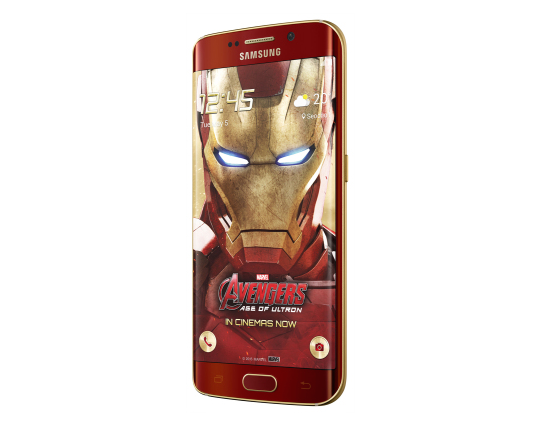
Galaxy S6 edge Iron Man Limited Edition officially launched

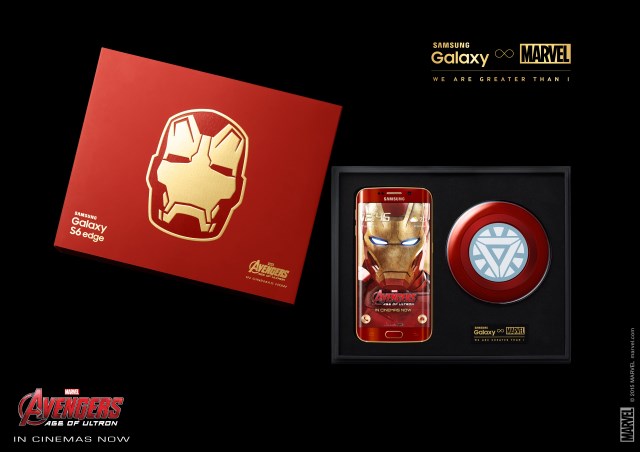
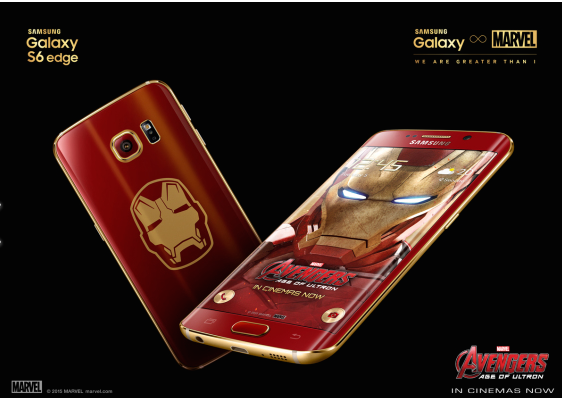
A couple of weeks back Samsung confirmed that it will be launching an Iron Man edition of the Galaxy S6 edge, the upcoming variant was teased a couple of times and now it’s finally here. Samsung today officially announced the Galaxy S6 edge Iron Man Limited Edition and as the name suggests, it will only be available in select markets and that too in limited quantity.

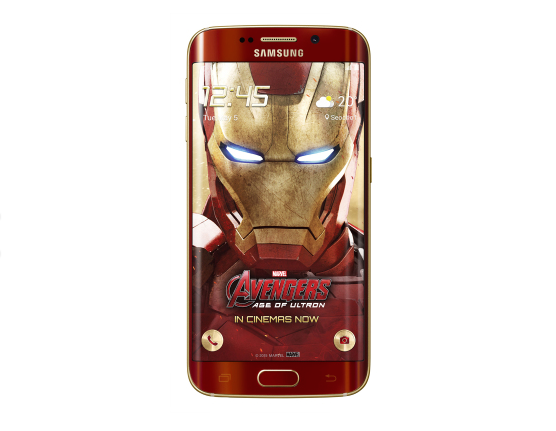
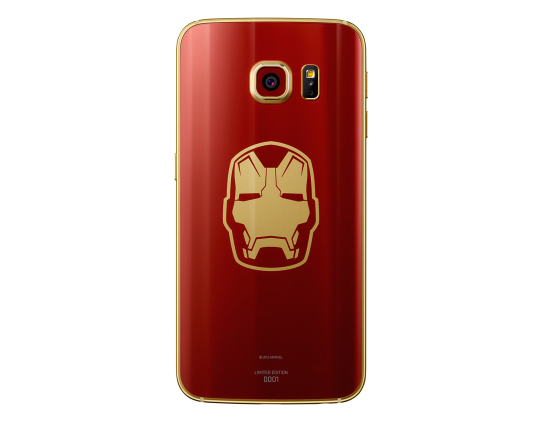
Samsung has teamed up with Marvel to create this limited edition variant of theGalaxy S6 edge, it’s meant as a “celebration of the technological innovation and creative visual storytelling in Marvel’s Avengers: Age of Ultron” Everything else about the handset remains the same, customers will get a special box with the iconic Iron Man mask plastered on top and in it a vibrant red and gold Iron Man-themed Galaxy S6 edge with 64GB of storage. Inside the box there’s also a matching wireless charger that looks like the Arc Reactor found in Tony Stark’s chest, and a clear cover.

The Galaxy S6 edge Iron Man Limited Edition will first be released in Korea tomorrow with Hong Kong and China getting it this June. Samsung has not yet said if this variant will be released in other markets as well, particularly in Europe and North America.

Official launching of Iron man edition of Galaxy S6

 
Hi-Tech Talk © 2015 - Designed by Templateism.com