Friday, June 5, 2015


Google's latest innovation is poised to change the way we interact with Android -- and there's far more to it than first meets the eye.

Computerworld | Jun 4, 2015 9:28 AM PT

When it comes to the evolution of Android, change usually seems to fall into one of three main areas.

First and most immediately noticeable are the broad and sweeping visual overhauls -- like what we've seen with Android Lollipop and its accompanying Material Design standard.
On a less obvious but no less significant level are the under-the-hood improvements, such as the efforts to boost battery life and performance in recent Android releases.

Then there's the third category -- the one that's trickiest to pinpoint when it first appears. That category is the addition of a seemingly simple service or feature that has the potential to dramatically change the nature of the operating system and how we use it. Items in this category are rare, but they can end up being the most transformative of all.

Google Now on Tap is one of those items.
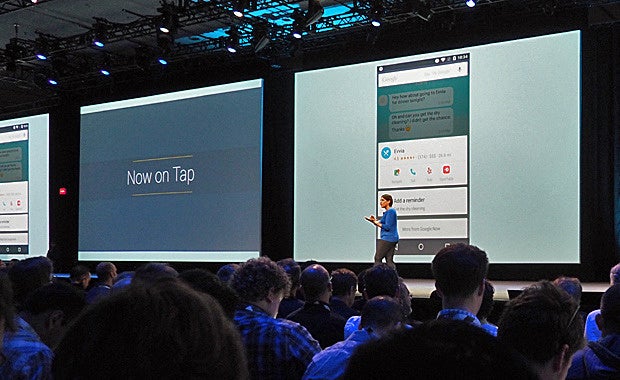
Google Now on Tap, introduced in the middle ofa giant string of announcements at Google's I/O developers' conference last week, is an expanded version of the Google Now system present on Android since 2012. Back when Now first launched alongside the Android 4.1 Jelly Bean release, I referred to it as the platform's "new secret weapon."

Make no mistake about it: Now on Tap is no less pivotal. In fact, it makes the original Now launch look like little more than a stepping stone to the fleshed-out product we're about to experience.

Here's a detailed look at what Now on Tap is all about, how exactly it works, and how it'll change the way you interact with your Android devices -- including some new nuggets of info we hadn't previously heard.

What is Google Now on Tap?

In essence, Google Now on Tap takes the power of Google Now and makes it a core part of the Android operating system. Instead of just being a standalone app that you open sometimes -- and maybe see in your notifications once in a while -- Now on Tap turns Google Now into a connective tissue that ties everything on your device together with potent Google intelligence.

How does Now on Tap work?

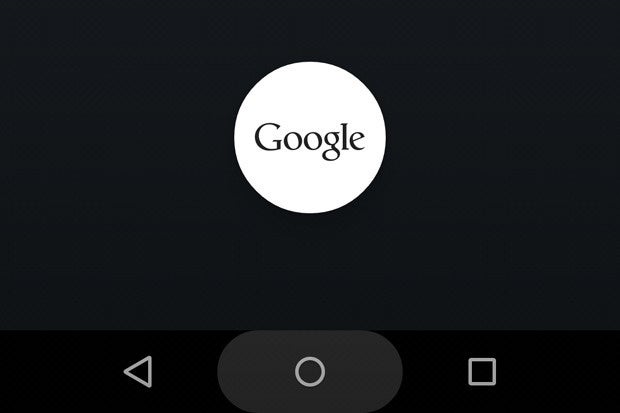
Starting with this fall's Android "M" release, Now on Tap will pull up anytime you tap and hold your device's Home button. Instead of being a full-screen app-like experience, it'll appear in a card-like interface that sits atop whatever app you're using -- and it'll provide contextual info related to what's on your screen at any given moment.

Okay -- so what exactly does Now on Tapdo, then?

As Google explains it, tapping and holding the Home key tells Google Now to use the context on your screen to give you more information about whatever you're seeing. That allows you to get extra knowledge about something without having to stop what you're doing, go to Google or your Web browser, and manually search for what you want.

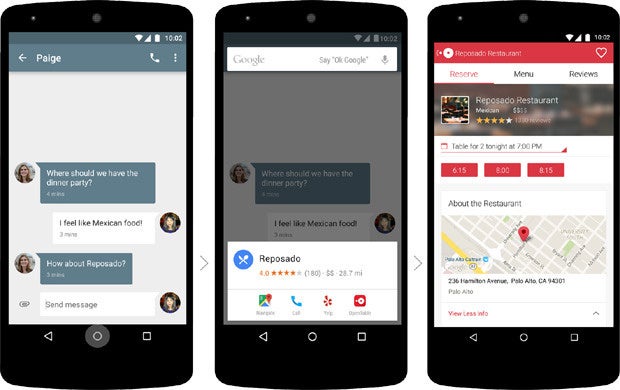
Real-world examples are really the best way to understand it. Say, for instance, you're looking at a text message from a friend suggesting a particular restaurant for lunch. You could tap and hold your Home key, and Now on Tap would instantly bring up a card showing you info about the restaurant your buddy mentioned -- ratings and reviews, a quick link for directions, and links to get even more info by jumping over to a relevant app like Yelp or OpenTable.
Google

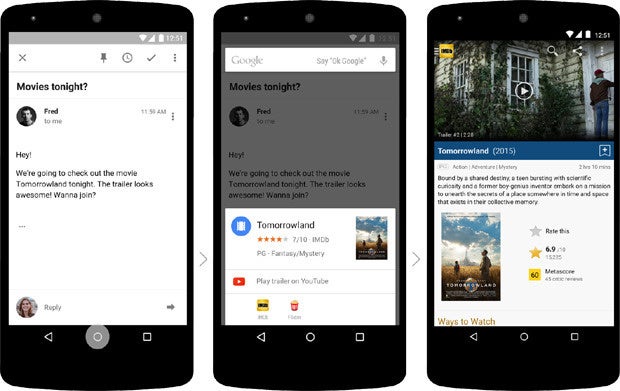
Similarly, if you're reading an email where a friend mentions a movie title, calling up Now on Tap would give you a card with reviews of the movie along with links to watch the trailer and get more info from apps like IMDB or Flixster.
Google

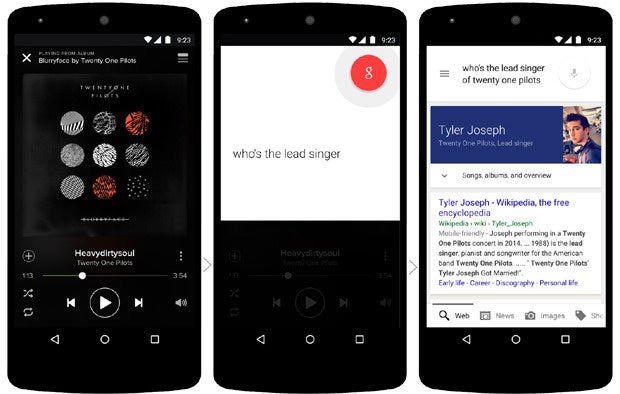
The system can also use contextual info on your screen to answer a question. If you're listening to a song, for example, you could simply say: "Okay, Google, who's the lead singer?" -- and Now on Tap would pop up a card with the answer. Or if you're looking at a place in Yelp, you could say: "Okay, Google, how far is it from here?" and Now on Tap would figure out what you mean and show you a map with the info.
Google

What Readers Like

Oh dears! Does this mean Google is going to be watching everything I do?!

Nope -- not at all. First of all, Google has confirmed to me that Now on Tap scans your screen only when you press and hold the Home button to activate the feature -- never before, and never in any ongoing or continuous manner. It sees what you're doing only if and when you tell it to look.

Beyond that, Now on Tap will be a fully opt-in feature. You'll have to opt in to use Google Now, just like you do already, and you'll then have to opt in a second time to use the system-wide Now on Tap system. If you don't opt in, Now on Tap will never run.

Got it. But how exactly does Now on Tapdo all this stuff, anyway?

According to Google, Now on Tap uses a system known as Android's View Hierarchy. For the non-geek-speakers among us, it basically scans the words you're seeing on your screen, identifies the most relevant terms, pastes them into a Google search, and then comes back with the info it thinks you need in a nicely structured card format.

And -- theoretically, at least -- it does all of that in a fraction of a second.

So Google Now on Tap can only "see" and interpret plain text?

For the moment, it'll focus on text -- but Google has hinted that the system could eventually scan and recognize images as well and provide you with contextual info about pictures you're seeing. Think Google Goggles kind of magic -- identifying famous works of art, landmarks, bottles of wine, and so forth. But that's all speculative, and I'm told recognition beyond basic text is likely not going to be present right away.

Will Now on Tap work from every app, or will developers have to actively support it in order for it to function?

Now on Tap will work out of the box with any app -- no special coding or compatibility required.

That being said, Google tells me developers willbe able to take extra steps to mark up their apps and make them even more effective with the system. A game developer, for instance, might code in information that'd let Now on Tap know what level a player is in at any given moment. Then, if the player were to press and hold her device's Home key, Now on Tap could pull up content and links relevant to that specific level in the partial-screen card.

In order for an app to appear as a link within a Now on Tap card, meanwhile, -- like IMDB and Flixster did in our example a minute ago -- its developer would need to have implemented app indexing so the system can find the relevant data and point users to the right place. App indexing is nothing new, though, and most apps that should support it already do.

All right, wise guy: If Now on Tap works everywhere, what's to stop it from seeing sensitive info -- like something from a banking app?

It's a good question, and one I posed to Google as well. First of all, remember that Now on Tap sees what's on your screen only when you activate it -- so it's not going to be suddenly snooping at your financial info and transmitting it via the local tinfoil network. 

But beyond that, a Google spokesperson tells me the company is looking into ways in which it could allow apps to mark certain types of info as sensitive and thus not compatible with or accessible to Now on Tap at all, under anycircumstances -- even if you were to go out of your way to activate the system while such info is on-screen. The feature is still being developed and the specifics aren't yet concrete, but I'm told the issue is absolutely something engineers are considering.

What about data storage? Does Google maintain any type of history of the info it scans from my Now on Tap searches? 

Nope. Google assures me the data is processed and immediately discarded and that no sort of history is ever stored.

What happens if Now on Tap detects competing info on the screen -- say, if I'm looking at an email that mentions a movie title and a restaurant name?

It'll give you two cards -- one for each relevant bit of info. Easy enough, eh?

What happens if I activate Now on Tap and it can't find anything on my screen with an obvious card to accompany it?

I wondered the same thing (my, you ask excellent questions!). The answer, for now, is that Google is still thinking this through -- and it's still up in the air. The ladies and gents working on the feature figure folks will typically tap and hold the Home key when there's an obvious path and area of info to be obtained. But we all know someone is gonna test the system in all sorts of weird scenarios just to see what happens (hey -- why's everyone looking at me all of a sudden?!).

My first thought was that Now on Tap could just show you plain search results in such instances, much like what happens when you ask Google Now or even Google itself a question for which it has no simple answer. But the Now architects may have a better solution: Right now, the team is thinking about whether there might be basic helpful things the system could show on a card when there's no specific info connected to what you're doing.

If all else fails, a photo of a tuba-playing puffin in a top hat might also be quite enchanting. (Just my two cents.)
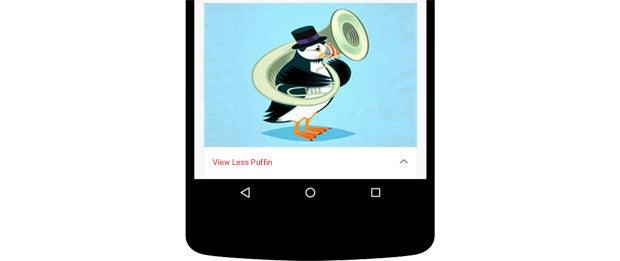
Crikey! That's a beautiful bird. But one last question: Is Google Now on Tap going to replace Google Now as we know it -- or will the full-screen app-like interface also still exist?

This one has another big fat "TBD" stamp attached to it, so things may change as we get closer to the launch -- but as of now, I'm told that tapping and holding the Home key is being positioned as the universal gesture to get to Now across the entire Android platform. And where you perform that gesture will determine what exactly transpires.

If you tap and hold the Home key from an app, you'll get the new Now on Tap cards. If you do it from the home screen, you'll likely get the full Now UI (similar to how you do today).

Consistency is the overarching goal, but different implementations may make sense for different scenarios.

The future of Android: An up-close look at Google Now on Tap

Zoloft and another drug keep most mice alive after infection with the virus

UNLIKELY CANDIDATE  The antidepressant drug Zoloft and another approved medication might fight the Ebola virus (shown). 

C. Bickel/Science Translational Medicine

The fearsome Ebola virus may itself fall victim to two already approved medications — the antidepressant drug Zoloft and a drug for patients with heart problems.

Researchers tested roughly 2,600 compounds and found 30 approved drugs with some capacity to fight the virus in lab-dish tests. The team tested several of these drugs in mice and found that Zoloft, also called sertraline,and the heart drug marketed as Vascor protected the animals best. Seven of 10 mice exposed to the virus and inoculated with Zoloft one hour later survived, as did all 10 given Vascor, a calcium channel blocker also called bepridil. The drugs block viral entry into cells, the team reports in the June 3 Science Translational Medicine.

The researchers plan to further test the drugs against Ebola, which has a high fatality rate and no known cure.

Citations

L. M. Johansen et al. A screen of approved drugs and molecular probes identifies therapeutics with anti-Ebolavirus activityScience Translational Medicine. Vol. 7, June 3, 2015, p. 290ra89.

An antidepressant may protect against Ebola

The iOS faithful who already received their shiny new Pebble Time smartwatches are likely more than a little disappointed. The wearable is shipping to Kickstarter backers, but there's one big problem: the Pebble Time Watch iOS app hasn't been approved by Apple yet. Despite pushing minor bug fixes for approval on May 22nd, and asking that the folks in Cupertino fast-track the request, the software needed to get the gadget up and running isn't in the App Store. Even though a version of the app was approved on May 18th, it can't be released "due to quirks in the App Store submission process and rules."

The company says it considered adding features for the Time to the existing Pebble iPhone app, but a new version of that software has been waiting on approval for over a month. For now, Pebble advises owners to find a pal with an Android device to sort the initial setup, and to bug Apple about the issue. You still won't be able to leverage any apps that require the device to be paired with a smartphone, though, and that's a major bummer.

We reached out to Apple on the matter and we'll be sure to update this post if he hear back.

Pebble Time's iOS app hasn't been approved by Apple yet

Sony reveals SmartBand 2 wearable with heart rate monitor

Companies often unveil new a product by putting an executive on stage and making them say nice things about it. Other times, they'll launch a fancy webpage and put up glamorous photos of whatever they're launching. Sony, on the other hand, appears to be unveiling a new product today by accidentally publishing information about it in the Play Store. Which, I suppose, still gets the job done.

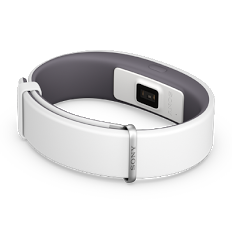
The slip-up makes it appear that Sony is making a new version of the SmartBand, its wearable that's meant to help people track what's going on in their life. This new one, called the SmartBand 2, adds a heart rate monitor, which should make it function much better as a fitness tracker. It also has a brand new app, which is what appears to have gone live in the Play Store early and revealed this information. The new app looks a lot better than Sony's dedicated Lifelog app, but you'll apparently still need to download both to get the full experience.

Like the existing model, the SmartBand 2 is also able to track steps and sleep, alert wearers of incoming messages on their phone, and vibrate when they have an alarm. It also has a dedicated button you can press to take a snapshot of all the data it has at the given moment, which is supposed to help you record meaningful moments in your life. That seems like a bit of a stretch, but it certainly sets the band apart from the many similar offerings already out there. It's not stated when the SmartBand 2 will be released, but given that its app is out there, it seems like it should be pretty soon.

SmartBand 2 wearable from Sony is with heart rate monitor

Thursday, June 4, 2015


Microsoft Surface Pro 3 (Photo : Microsoft (http://www.microsoft.com/surface/en-us/products/surface-pro-3))

The much awaited Microsoft Surface Pro 4 is rumored to come out with the new Lumia 940 and Lumia 940 XL, according to a recent Cross Map report. The article also says that the new devices would likely be unveiled during the release date of the Windows 10, which is reportedly going to happen in July.

"We believe the best time to bring those flagship devices to market is when we have our very latest flagship software experience available. We're focusing our flagship development for slightly later when Windows 10 is available," Microsoft Phone Marketing Director Neil Broadley was quoted in the report saying.

Broadley did not mention any specific handsets but Cross Map bets it's going to be the Lumia 940 and Lumia 940 XL. In our previous report, we detailed about the new devices' possible specs and features. The Lumia 940 is believed to be a 5.2-incher device with a 1920 x 1080 resolution, Snapdragon 808 processor, 32 GB of storage, 3GB of RAM, and 17/20-megapixel main camera. The Lumia 940 XL meanwhile is a larger version of the device.

Going back to the Surface Pro 4, Cross Map said that the device is expected to be released in August or September, though there are also speculations that it would be in October.

The International Business Times earlier reported that it is likely that the new laplet would come out this July, during the launch of the Windows 10. The July launch of the Windows 10 was confirmed by The Verge citing AMD president and CEO Lisa Su who said: "With the Windows 10 launch at the end of July, we are watching sort of the impact of that on the back-to-school season, and expect that it might have a bit of a delay to the normal back-to-school season inventory build-up."

Industry analyst Paul Mueller however was quoted in an Inquisitr report saying that the new Surface Pro 4 would likely arrive in October. "The Surface Pro 3 is selling just as well as it did when it first came out. Even though people expected a June or July release for the Pro 4, it probably won't happen until Windows 10 is released. That way, Microsoft could capitalize on both Windows 10 and the new Surface Pro at the same time," Mueller was quoted as saying.

BGR speculated that the new Microsoft laplet would be available in two size options -- a 12-inch one and a 14-inch one. It is said to have an Intel Core i5 processor or a Core i7 processor and a 16 GB of RAM. There were also reports that it might be LTE-capable. Microsoft has not yet confirmed any of these speculations.

Microsoft Surface Pro 4. Release Date and spec

Why Android Pay Will Succeed Where Google Wallet Failed

Last week, when Google unveiled its new payments service , Android Pay, it was hard to understand what was so new.

Google already offered a payments service. It was called Google Wallet, and like Android Pay, it was a way of using your smartphone to pay for stuff both in stores and online. The name—Android Pay—was new. But as the company unveiled the service at its annual developer conference, even that had a familiar ring. It was an echo of Apple Pay, the payments service that arrived on the iPhone to much fanfare this past fall

To be sure, Android Pay will streamline Google Wallet in some ways, whether you’re tapping your phone to an NFC reader at a McDonald’s or ordering food from the GrubHub app. Google will offer tools that lets online banking apps plug into its payments service, perhaps easing the process of, say, getting your credit card onto your phone. And brands like Coca Cola are offering rewards programs. But these are relatively small changes.

The big difference—barely discussed at the Google I/O developer conference—is that AT&T, Verizon, and T-Mobile will preinstall Android Pay on phones when the service is ready later this year. According to Osama Bedier, the former PayPal exec who oversaw the creation of Google Wallet and now runs the payments startup Poynt, this is the big thing Google Wallet was missing—and the big thing that could make an Android-based payments service (and mobile payments in general) take off.

“That’s the headline here,” Bedir says, referring to how the big carriers have embraced Android Pay. “You have to have the wallet on board the phone. Otherwise, people have to download an app—and getting them to do that is much, much harder.”

Google said Android Pay will be accepted by more than 700,000 physical stores and over 1,000 mobile apps. Those are nice numbers. Digital wallets like Android Pay won’t be more than a niche unless merchants get on board. Many of those merchants—using terminals featuring near-field communication technology, or NFC—were behind Google Wallet. The carriers were not.

At least not until February, when Google announced its deal with all three. Google’s mobile payments service was still called Google Wallet back then. But the arrangement won’t take effect until the official arrival of Android Pay, sometime later in the year.

Riding the Existing Rails

Though digital wallets have been around for years—Google Wallet arrived in 2011—they’ve had minimal impact on the market. According to research outfit Forrester, mobile payments account for about $50 billion in sales, compared to total credit card payments estimated at $2.7 trillion. But Apple Pay has suddenly kickstarted the idea.

Many argue Apple didn’t do anything Google hadn’t already done. But it worked with MasterCard, Visa, and American Express so its system would dovetail securely with existing credit card networks. It worked with companieslike Stripe that help merchants build online services that can accept digital wallets and other payment methods. And it put Apple Pay on the iPhone, the world’s preeminent mobile device.

The way in which Apple Pay spread across merchants, carriers and phones was unprecedented, says Rich Stuppy. He’s the chief operating officer of Kount, which helps companies detect credit card fraud, including via mobile payments. “Companies have struggled in vain to get Apple’s level of adoption for years and sometimes decades,” he says.

Carriers had previously resisted selling phones with this type of payments system with an eye towards offering their own. But Isis, or Softcardas it was later known, never took off, and Apple and the iPhone had the leverage needed to pry the carriers open. Bedier believes its no coincidence that Google’s deal with the carriers followed shortly thereafter. “It’s similar to how the iPhone was a catalyst for Android as a whole,” he says.

As part of its deals with AT&T, Verizon, and T-Mobile, Google also acquired technology from the now defunct Softcard with an eye towards rolling it into Google Wallet—the thing that’s now called Android Pay.

Filling the Gaps

We’re still a long way from a world in which most people use phones to pay for things According to a study from Kount, just 23.7 percent of merchants accept payments from mobile wallets, a figure that includes merchants both online and off. But we’re reaching a point where widespread adoption is at least possible. Forrester says that mobile payments could expand to $142 billion by 2019.

It’s not just that Apple has greased the wheels. New rules require stores to offer hardware that can accept the new chip-and-PIN credit and debit cards. In upgrading to these card readers, merchants may be more likely to install NFC hardware that communicates with smartphones. And now Android Pay is on the way.

No, it’s not all that different from Google Wallet—or Apple Pay. But the carriers are on board. And Google’s Android operating system accounts for about 80 percent of smartphone market. In other words, a lot more people will find themselves with a mobile payments app on their phones, whether they wanted one or not. And at least some of them will use it. As Stuppy says: “Android Pay can help fill the gaps Apple Pay can’t fill.

The all new Android Pay

Wednesday, June 3, 2015

You've seen the first impressions. You've tried the app yourself. Now check out some of the awesome advanced features tucked inside the new Google Photos.

Got Photos? (The Google app, that is. Not just photographs in general.)
If so, get ready: Google's new image service packs some serious power. And if not -- well, what are you waiting for?
Beyond the basics, here are 16 awesome advanced features tucked inside the new Google Photos.
Be warned: Some of these may blow your mind.
(Note: The features here are all described as they appear on Android. Most of the same things, however, should be available on the iOS app as well, if that's the way you like to swing. Some of them are also available on the Web, though many are specific to the mobile interface.)

1. Pinch to change your perspective

By default, the new Google Photos app shows your images in a daily view, with medium-sized thumbnails arranged chronologically by date. But there are three other views available, and you can move between them simply by pinching in or out on your device's screen.
Pinch outward once from the day view, and Photos will move into what it considers the "comfortable" view -- in which the thumbnails are all significantly larger and easier to see.
Pinch inward once from the day view, meanwhile, and you'll go to a compact view with smaller thumbnails and thus many more images on the screen at a single time.
The Google Photos app's compact and comfortable views
Pinch inward a second time, and you'll get the Photos app's monthly view. That shows you a bunch of tiny thumbnails arranged by month to give you a broad overview of your images and let you quickly scan through your collection.

2. Keep pinching to navigate into (and out of!) images

The pinch gesture carries throughout the entire Photos app: Every time you pinch inward, you'll go to a closer view of your images, as described above. Once you're in the closest possible view -- the "comfortable" view -- pinching in on any image will open that image in full.
And regardless of what view you started in, pinching outward on any image while viewing it in full will take you back to the main image list (with a really nice transitional animation!).

3. Scroll slowly -- or scroll quickly

Scrolling the normal way -- by sliding your finger up or down on the screen -- works fine in Photos. But the new app also offers another option: Once you start scrolling, you can touch the quick-scroll icon on the right side of the screen and drag it upward or downward to move more quickly through your images. A small text box will show you what month you're viewing as you hop through the list.

4. Jump out of images with ease

While viewing an image in full, you can swipe upward or downward on it to jump back into your main image list. Think of it as a gesture to match scrolling-based navigation, while the pinch-out shortcut (mentioned a moment ago) is meant to match pinch-based navigation.

5. Swipe between sections

While we're on the subject of swiping, did you know you can navigate between the different sections of the Google Photos app simply by swiping left or right? Try it: From your main photos list, swipe left once. That'll take you to Photos' Assistant feature, where you'll find suggestions for expanding and improving your Photos experience.
Swipe to the right, meanwhile -- once from the main photos list or twice from the Assistant screen -- and you'll be taken to Collections, which is where you'll see images organized by trips, topics, and dates (via albums you've created, albums Photos has generated on its own, and a mix of auto-generated movies and "stories" -- tap the little drop-down arrow next to the word "Collections" at the top of the screen to look at any one of those areas individually).

6. Explore the crazy-powerful new search feature -- starting with face recognition

See that blue circular icon with a magnifying glass in your main photos list? Tap it. Tap it now. Trust me.
That icon takes you to Photos' search screen, which holds some of the app's coolest and most powerful features.
At the top of the search screen, you'll see the six most frequently photographed faces from your images. On mine, for instance, I see myself, my wife, my daughter, my brother, my mom, and my friend Andrew (who evidently wormed his way into enough photos to earn a spot in my top six -- sneaky bastard!). You can also see more faces by tapping the "More" link next to the word "People."
Tap any of those faces, and you'll see all of the photos -- or at least many of them -- in which that particular person appears. And here's what's crazy: Google says the app is able to track a person's face and continue to recognize it as they age over time. So in theory, at least, the current photos of my daughter as an infant will one day be grouped together with photos of her as a young child, a teenager (eek!), and an adult.
Spot a photo where it doesn't belong? It's bound to happen every now and then (though the recognition has been pretty close to spot-on in my experience so far). If it happens to you, simply tap the menu icon at the top-right of the screen, select "Remove results," then select the photos that shouldn't be present within any person's collection.

7. Explore your photos by location

Scroll down below the faces in that same search screen, and you'll find a list of locations in which your photos have been taken. What's particularly remarkable about this is that it works even if you don't have location reporting activated, as is the case for me.
How? Google says its technology is able to recognize known geographical landmarks from photos and then use logic (and the laws of physics) to infer your location in other nearby photos. If you took a snapshot of the Eiffel Tower on February 9th at 2 p.m., for instance, Google can safely assume you were still in Paris in that selfie you took in front of a bakery 45 minutes later. The accuracy and level of detail may surprise you.

8. Explore your photos by objects and themes

This may be the most impressive part of the new Photos app: Beneath the locations in the search screen, you'll see a list of common themes found in your photos -- things like flowers, concerts, weddings, forests, nightclubs, and dancing. Tap any categorization, and you'll find a selection of photos that matches that description.
Some of the things identified and suggested by the new Google Photos app

9. Search your photos for practically anything imaginable

This feature's actually a carryover from the old G+ Photos app, but it gains extra power and usability in the new version: In addition to browsing through all the areas mentioned above, you can manually search your photos for all sorts of things. Having this ability completely transforms the way you organize your images -- or, more accurately, don't have to bother organizing them -- in order to find what you want.
On the search screen, tap the area at the top labeled "Search" and start typing in a term. You'll see the app offer auto-complete suggestions as you type; these are all generated based on your own individual photo collection and are specific to things found within your images.
What kinds of terms can you search for? The better question is what kinds of terms can't you search for. I've had luck with things like "swimming," "theater," and "winter." You can even get ambitious and try combining terms for extra-specific searches, like "food on honeymoon" (which worked amazingly well for me -- but then again, we did eat an insane amount of grub on our post-nuptial adventures).
To start, I'd suggest typing different letters and seeing what auto-complete suggestions appear. One fun term I encountered that way was "crochet," which pulled up pictures of my daughter in different handmade blankets friends and relatives had made for her.
Another one worth trying is a color -- yup, a color. Go give it a whirl, and you'll see what I mean.

10. Play around with Google Creations

If you used Google+ Photos in the past, you might be wondering what happened to Auto Awesome -- the fun set of collages, animations, and videos Google automatically generated based on your images. Fear not: They're still here; they just have a new name.
Scroll all the way down on the Photos search screen, and you'll see an option called Creations. There, you'll find all the different ways Google has mashed your photos together into interesting new forms.
The Photos app will still make those mashups automatically, as the old app did in the past. But with the new app, you can also manually makeany of those items anytime you want.
To do so, just select any set of photos from your collection (more on the act of selecting in a second). Tap the "+" icon that appears in the upper-right corner of the screen, then choose from any of the options that appear -- adding the images into a new album, movie, story, animation, or collage. You'll be able to view and share the resulting creation seconds later.

11. Select photos the smarter way

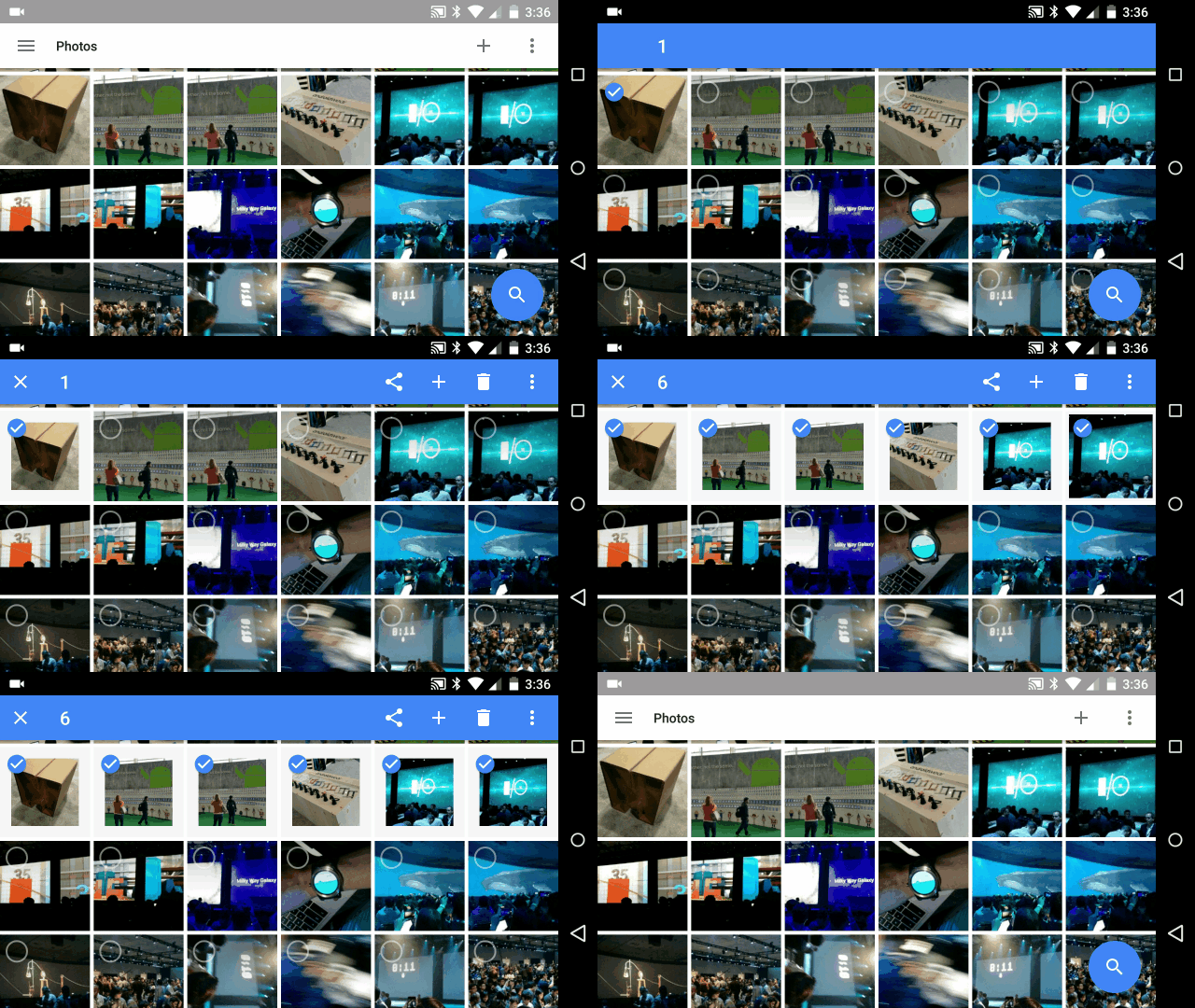
Manually selecting a bunch of items on a phone can be a pain -- long-pressing one item, then tapping each additional item you want to be included one by one. Well, thank your lucky stars, gang: The new Photos app has a better solution.
While viewing images in the Photos app, long-press on any photo to start the selection process. Then, without lifting your finger, drag upward or downward. That'll allow you to quickly select a bunch of consecutive photos without having to do the typical tap-tap-tap dance.
Selecting multiple images in the new Google Photos app

12. Take advantage of Photos' fantastic new sharing feature

The new Google Photos app makes it dead-simple to share any number of photos with friends or family (or hell, even enemies, if you want -- you devious scamp, you).
You can still share photos normally, by sending an image or set of images to any compatible service on your phone -- an email app, messaging app, social media app, and so on. But you can also opt to use a new option called "Get link," and if you're anything like me, you'll really appreciate what it can do.
"Get link" essentially creates an on-the-fly album with all of the images you've selected to share. It then copies a link to that album into your system clipboard.
Send that link to anyone you want, and they'll be presented with a gallery containing the photos you selected (and no others). They'll be able to view the full-res images whether they're signed into Google or not. They'll even be able to download them all in one fell swoop, if they so desire.
A set of photos shared from the Google Photos app, as viewed on the desktop (while not signed into Google)
If the person is signed into Google and has a Photos account of their own, they'll also have the option of adding the images directly into theirown Photos collection with a single click. That's gonna to make the act of sharing images from my phone to my wife's collection and vice-versa easier than ever.
The makeshift galleries you share are accessible only to those who have the link -- but here's what's especially useful: If you share a link and later decide you don't want anyone to be able to access those photos, you can revoke access. Just tap the main menu icon (the three horizontal lines) at the top-left of the Photos app, then select "Shared links." There, you'll see a list of all the photo links you've created along with options to delete them.

13. Free up space on your phone

One of Photos' key features is the ability to automatically and continuously back up photos from your phone to the cloud for safe-keeping and universal access. Once a photo is backed up, then, there's really no reason to also keep storing it locally and thus take up precious space on your phone or tablet.
The new Photos app makes it easy as pie to free up space on your device by removing redundant local copies of images. There's just one caveat: You have to choose to back up images at their full original resolution in order for the feature to be available. If you choose to use the free and unlimited "High quality" backup option, Photos won't offer to delete local versions of images -- since the local versions aren't identical to those stored on Google's servers.
(You can change your choice in the "Back up & sync" section of the app's main settings; just remember that by opting to upload images at their full original resolution, you may eventually run into a storage limit and have to purchase more space.)
If you're uploading at full resolution, look in the Assistant section of the new Photos app. When the local storage on your device gets low, you'll see a card there showing exactly how much space you can free up by deleting local copies. You'll also get a single-tap option to do the deed and remove all the local copies.
Freeing up local space with the Google Photos Assistant
The beauty of it is that so long as you have an active data connection, you won't even notice the difference after the local images are deleted. All of your photos will still show up via their cloud-stored versions, and for all practical purposes, they'll look and act exactly the same as they did before.

14. Save RAW files and other uncompressed originals

Do you shoot photos in a professional-quality format like RAW? If so, you probably don't want Photos to back up the images as JPGs (and if this all sounds like Greek to you, no worries -- it probably doesn't apply to you. Just take a swig of the nearest beverage and move onto the next item).
Google Photos can save files in their original formats, if you want; the key is just to select the option to upload files in their original resolution instead of in "High quality," as mentioned above. With the original resolution option, everything will go to Google's servers just as you have it -- in the same format and at the same size.
Remember that files like RAW images tend to take up a lot of space, though, and this type of storage is not unlimited.

15. Edit images in Photos -- or quick-switch to Snapseed for even more options

The old G+ Photos app had a really nice built-in image editor. The new app's editor is significantly simpler, with a narrow focus on basic image tuning and manipulation -- and you know what? That'll be more than enough for most people. (You can get to the Photos image editor by tapping the pencil icon while viewing any image.)
If you're into more advanced photo manipulation, you'll want to snag Snapseed -- the robust yet free Google-owned standalone image editor. In a neat twist, once Snapseed is installed on your device, you'll find a quick link to it right within Photos that lets you beam any image over for a nearly seamless editing experience.
Just tap the menu icon in the upper-right corner while you're viewing an image. If Snapseed is on the device, you'll see the option there to edit the photo in Snapseed.
Easy peasy, eh?

16. Sync all your photos with a local computer

With all of your photos in the cloud, you probably won't have to worry about having a comprehensive local backup of your images. If you like the idea of keeping your entire image collection on your computer, though, there is a way to sync Google Photos with your own personal hard drive. And once you set it up, you'll never have to think about it again.
First, you'll need to download and install theGoogle Drive syncing app for Mac or Windows, if you haven't already. Make sure the app is set to sync everything in your Drive to a folder on your computer.
Second, you'll need to head to the Drive websiteand click on the link in the left navigation bar labeled "Google Photos." Then, click the button to add a Google Photos folder to My Drive (assuming you haven't done that already -- if you have, the button won't be there).
Within a minute or so, a new folder should show up in your Drive called Google Photos. And since you have Drive set to sync with your computer via the Mac or Windows app, that folder will now be backed up and synced -- both ways -- with the corresponding local folder.
The power is in your hands, compadres. Use it wisely.

16 cool things to try with the new Google Photos

The Inside Story of Google’s Bizarre Plunge Into VR

Google vice president Clay Bavor unveils the new Google Cardboard virtual reality headset at the company's annual developer conference. David Paul Morris/Bloomberg via Getty Images

David Coz worked in Google’s Paris office, but what he really wanted was a job at the mothership in Silicon Valley.

Last spring, the French-born Coz turned up at Google headquarters in Mountain View hoping to chat about his latest project with anyone who would listen. “I came with my prototype and my luggage,” he says, “and I met with 10 or 15 people.” One of them was Christian Plagemann, a Google research scientist exploring new interfaces for consumer electronics devices. Though they’d never met, Coz showed him the prototype: a pair of virtual reality goggles made out of cardboard.

Plagemann was intrigued—“David showed me this cardboard box,” he says, “and I thought it was absolutely amazing”—and he took the contraption to Google’s bigwigs, including CEO Larry Page and vice president of engineering Sundar Pichai. “I convinced him to leave me one of the boxes. He flew back to Paris. And I started showing it around,” Plagemann remembers.

Two months later, Pichai unveiled the project on the keynote stage at Google’s annual developer conference in San Francisco, and Google employees handed cardboard headsets to thousands of coders as they streamed from the speakers’ hall. It was a slightly odd sideshow at a conference where the company typically doled out millions of dollars in phones, tablets, and other electronic gear. But in the year since, this unexpectedly low-tech device—something that wraps around an ordinary smartphone screen—has engendered a sweeping virtual reality project inside the company, giving Google a foothold in an area poised to reshape the tech world.

Coz did join the mothership. He and Plagemann and the other Paris employee who createdGoogle Cardboard, Damian Henry, are all part of a Google VR team that’s “bigger than people think it is.” In December, the team roped in a group of 3-D vision experts led by Steve Seitz, a University of Washington professor whose work gave rise to a panoramic photo application from Microsoft called Photosynth. John Wiley, who previously oversaw the visual design of the Google search engine, recently joined as well. And the team is now fashioning rather complex VR tech that puts Google in competition with Facebook, Microsoft, and others.

On Thursday, after team leader Clay Bavor showed off a new incarnation of the cardboard goggles at this year’s Google I/O developer conference, he revealed that the company has designed a 16-lens camera that can record videos across 360 degrees, and that it’s developing a software system that can turn these videos into the kind of immersive, stereoscopic experiences the goggles are intended to provide. The company calls all this its “Jump” VR platform, and it says GoPro will offer a version of its camera this summer. But all these developments, it seems, are merely precursors to something larger. “We have ambitions beyond just Cardboard,” Bavor says. “There are many other things going on.”

Attendees look through Google Cardboard VR (virtual reality) viewers during the Google I/O Annual Developers Conference in San Francisco.David Paul Morris/Bloomberg via Getty Images

‘The VR Nerd’

The rise of Google Cardboard shows the unusual way Google operates. In Paris, Coz and Henry worked for the Google Cultural Institute, a way for museums and other institutions to put their art online. Their cardboard goggles, meanwhile, were a “20 percent project,” where Google employees dedicate one day a week (that is, 20 percent of their time) to some new idea.

The project began after they stumbled onto a little-seen YouTube video shot from a flying drone. It was a stereoscopic video meant for a 3-D headset they didn’t have, and at some point, they realized they could view such videos if they wrapped a makeshift headset around a phone—“you just have to make sure the phone understands where your head is looking,” Coz says—and they pitched the idea to their Paris manager as a way for students to virtually visit museum galleries.

20-percent projects have sparked some pretty serious products in the past—think Gmail and AdSense—but even for Google, the transformation of some French cardboard into a well-appointed VR team is an extreme case. “When it came out last year, it seemed like slap in the face of VR—a slap in the face of anyone who thought VR was a high-brow thing. They were like: ‘It doesn’t have to be that way,'” says Brian Blau, an analyst with research outfit Gartner who previously explored virtual reality both as an academic and in the commercial world. “But this slap in the face became ‘Whoa, we’re right.’ And now it’s a lot more serious too.”

Last spring, after Plagemannn—a German-born engineer who previously worked on self-driving cars at Stanford UNiversity—showed the cardboard goggles to the Google braintrust, someone suggested he take them to Bavor. Bavor was a vice president of product management who oversaw user interface design for Gmail, Google Docs, Google Drive, and Google Apps. But inside the company, he was known as a “VR nerd.”

“I’d been experimenting with virtual reality and telepresence: How do you and I have a conversation if we’re not actually here?” says the boyish-looking Bavor. It’s the kind of thing, he explains, that he has always experimented with. He likes to think he created his first VR application when he was twelve, using the old Apple Hypercard program to create a panoramic image of his home. “There were no goggles. It was very much a poor man’s virtual reality. But it was something I was really thinking about.”

Under Bavor, the team turned those cardboard goggles into something that’s now used by as many as one million people. Blau says this makes Cardboard the most successful VR device of all time—“by a large stretch.” Using Google’s designs, anyone can build their own goggles, dropping two lenses into the front of the cardboard contraption and a phone into the back. From the phone, they can then use an app to play those stereoscopic videos—videos that capture the same scene from two slightly different angles and give the illusion of depth when viewed through two separate lens (one for each eye).

As the project expanded, the team added camera designers as well as Seitz and his team. Seitz retains his post at the University of Washington, but about five years ago, he joined Google to create a group dedicated to 3-D vision. “I was told I could come to Google and hire whoever I wanted and work on whatever I wanted,” he says. “I was able to hire my dream team.” Previously, the group built 3-D photo tours atop Google Maps and they worked on a tool that lets yourefocus a photo after it’s taken.

Bavor declines to say what the company is working on outside of Cardboard and Jump. But according to the Wall Street Journal, the team is building a “version of the Android operating system to virtual reality applications.” Though theJournal is short on details, this implies the OS would run on a new breed of hardware—that is, googles that aren’t made of cardboard.

‘At The Right Time’

Google’s virtual-reality effort puts it on a parallel track to Facebook, which acquired the VR startup Oculus last spring and is set to launch its Rift headset later this year. But Google is also eyeing “augmented reality” akin to what Microsoft is exploring with its Hololens headset. In addition to its much discussed Google Glass headset—which sits in a kind of limbo at the moment—the company recently joined a group that invested $542 million in the cagey augmented reality startup Magic Leap. Bavor says he was “very much involved” in the deal.

Augmented reality systems provide a way of layering 3-D images—or “holograms”—atop what you see here in the real world. The hope is that they not only provide a new way of using computing systems, such as hanging a Skype window on your wall, but also transform how we watch movies and play games and even help designers and engineers create physical objects. Virtual reality, by contrast, shuts out the real world, immersing you in a different “place” in a way that’s best suited to games and education and training. On Thursday, Google released what it calls Expeditions—a way for school kids to take virtual trips to places like Venice and the Great Wall of China. It’s an echo of the original pitch Coz and Henry made to their manager in Paris.

Bavor says this is the immediate future of VR. But Facebook also sees it as a means of worldwide communication. That’s a long way off, but we’re moving in that direction—at Facebook and Google and others. “Cardboard,” Coz says, “was a project that came at the right time.”

The Inside Story of Google's Bizarre Plunge Into VR

Doctors recently modified the herpes simplex virus to fight skin cancer. Could the ability to kill cells by using viruses be the key to curing cancer for good?

There's a pretty good chance that you or someone you love has been affected by cancer in some way. It's the second leading cause of death after heart disease in the U.S. While there are a number of risk factors that can increase your chances of getting it, it can strike anyone at any time. It kills one in four Americans and is the leading cause of death for women aged 40 to 79 and men aged 60 to 79. While a number of treatments, like chemotherapy and radiation, can lower fatality rates, these treatments can bring some major side effects and health complications.

A promising new cancer treatment on the horizon uses a seemingly unlikely source: the herpes virus. The largest viruses are many times smaller than the smallest bacteria. They consists of nothing but genetic material wrapped in a protein coat, so they can't live without a host and reproduce by attaching themselves to other cells, which they reprogram to make new viruses. The host cell continues to reproduce the virus it's infected by until it explodes with new viruses. Certain viruses can turn normal cells into cancerous ones. Virotherapy, or using viruses to attack another virus is a known way to kill viruses. This potential first became clear more than a century ago when doctors noticed that cancer patients who caught measles, hepatitis, or other viral-based diseases seemed to temporarily go into remission. 

Recently, scientists at the Institute of Cancer Research in London have been conducting successful trials with a skin cancer drug called T-VEC, a genetically engineered version of the herpes simplex virus which only replicates in cancer cells while leaving healthy tissues intact. In the latest T-VEC trial, it was given to 436 patients suffering from inoperable melanoma. And though the drug is still not licensed, the results have been promising so far, and with any luck drugs like T-VEC will be able to fight other forms of cancer, too.


Can the Herpes Virus Kill Cancer?

Tuesday, June 2, 2015

ZenWatch 2

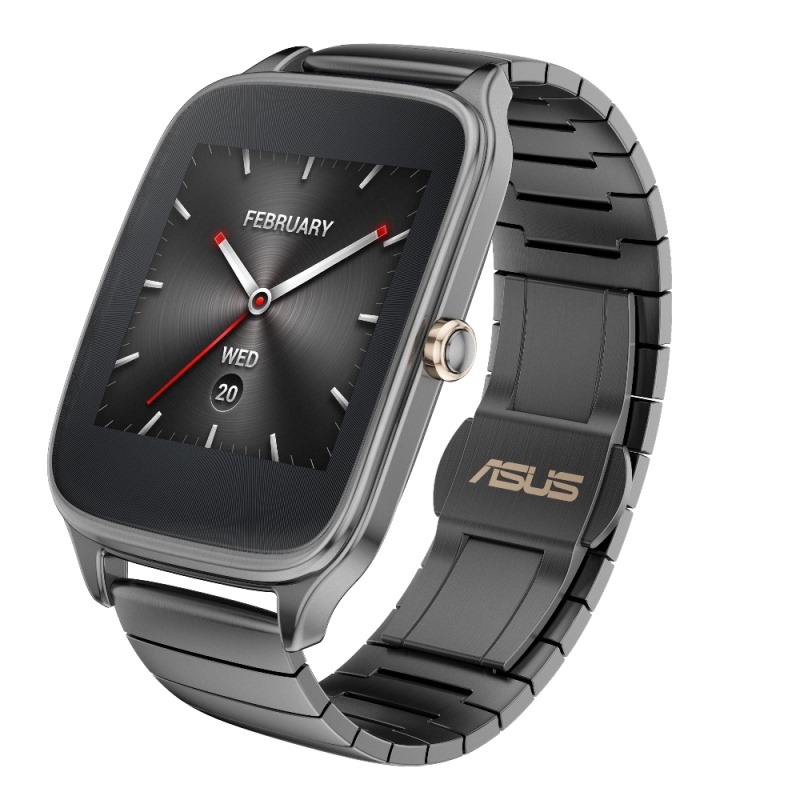
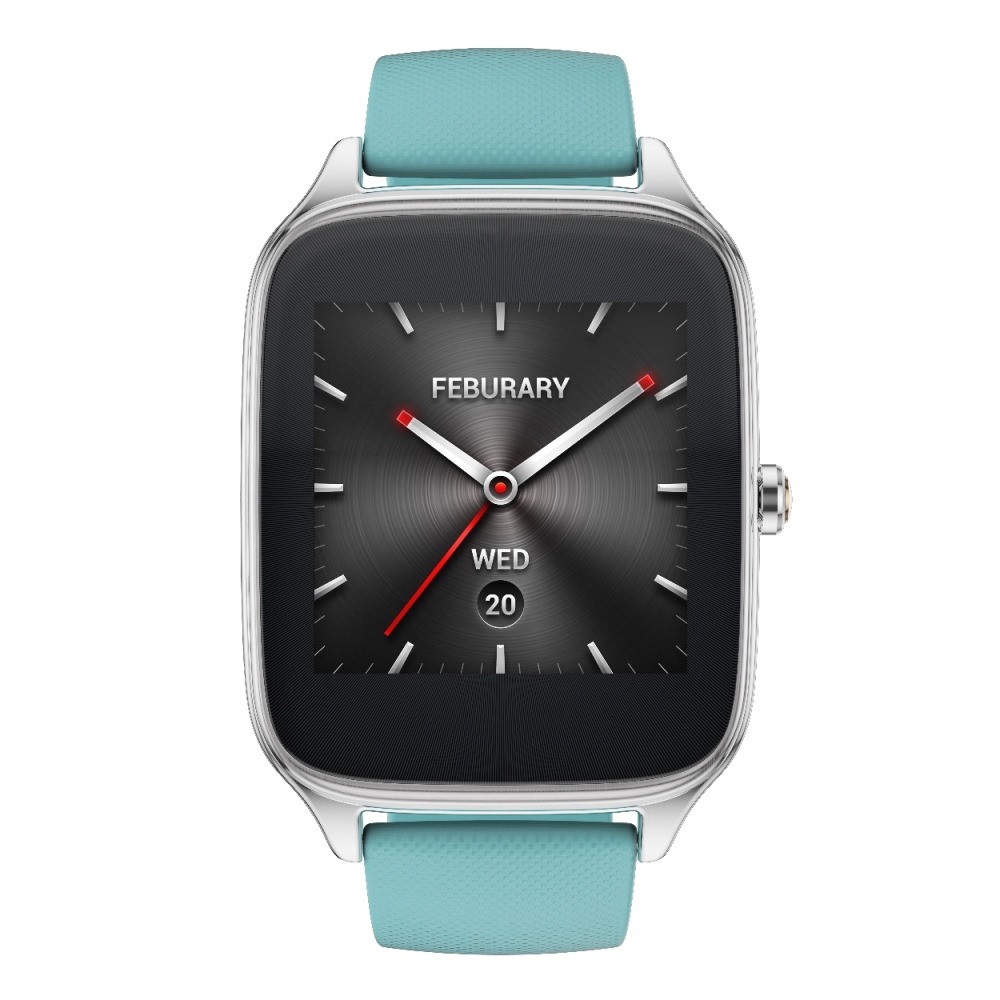
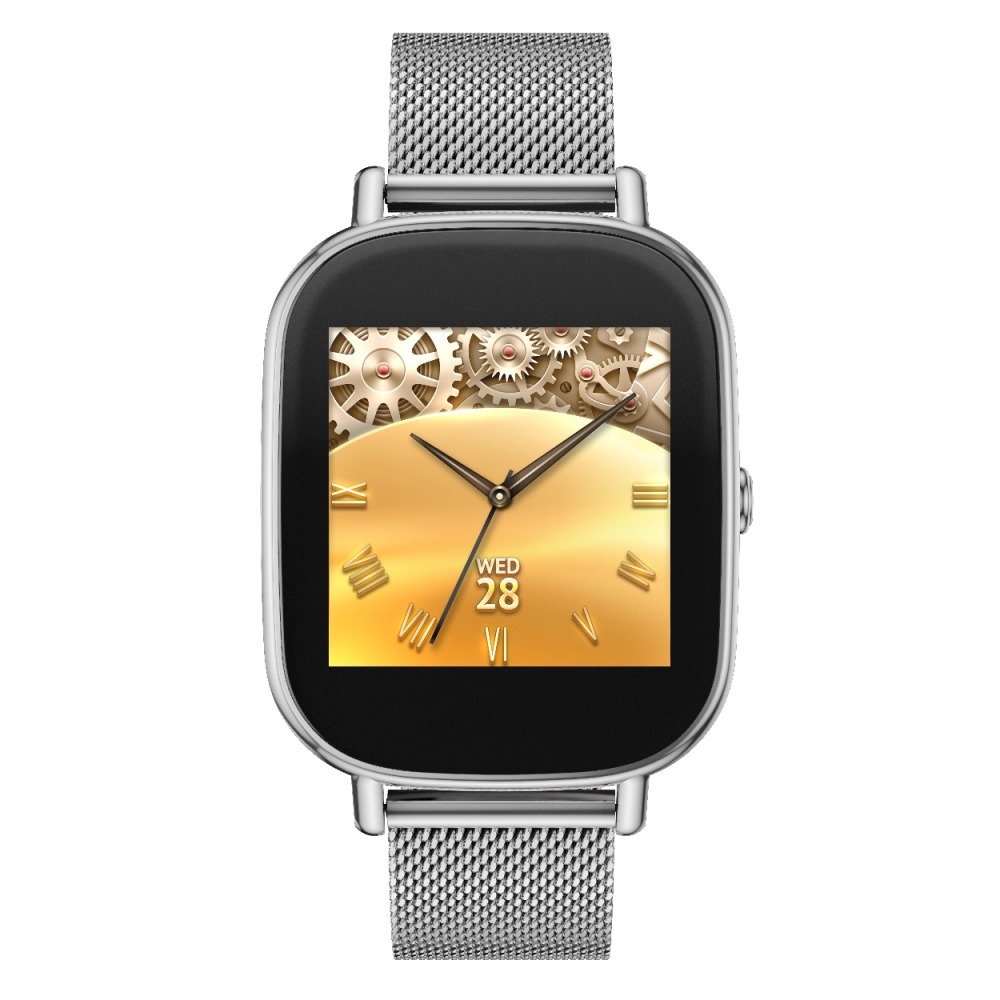
Let's get to the headliner: the big news with the ZenWatch 2 is that it now comes in two sizes - 37mm and 41mm (width). The smaller 37mm sports an 18mm strap, with the 41mm having a larger 22mm band. Both have AMOLED dipslays with Gorilla Glass 3, IP67 dust and water resistance, magnetic charging cables, and use unspecified Qualcomm processors (likely still a Snapdragon 400). The ZenWatch 2 has a crown now, too, which ASUS says adds functionality, but isn't exactly specifying how just yet. It's also not clear if the smaller ZenWatch 2 has a smaller screen, or if the case is simply shrunk down a bit.

There will be a variety of first-party straps to choose from, with rubber ones in blue, orange, red, and taupe, leather in khaki, brown, gray, blue, and orange, and a stainless steel band in silver, gunmetal, and rose gold. There will also be a Swarovski Professional leather strap with embossed diamond pattern and, you guessed it, Swarovski crystals. I'm guessing availability of all these bands with vary a lot depending on where you live. The watches themselves will be offered in three finishes matching the stainless steel bands (silver, gray, rose gold).

The new magnetic charger allegedly offers drastically improved charge times and "effortlessly attaches" to the ZenWatch 2, not that we have any illustrations just yet. The remote camera app has been updated, too, and there's a new "next-gen" Wellness app to track your activity. Availability and pricing were not announced.

ZenFone Selfie

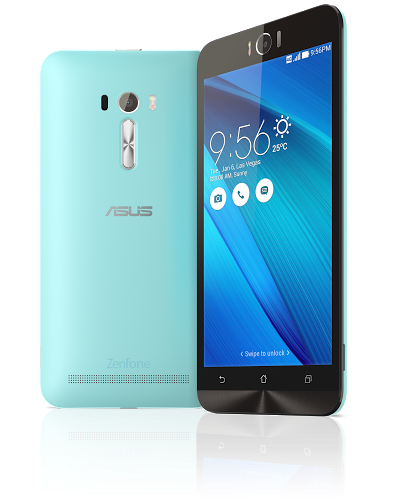
The next product on the block was ZenFone Selfie which, you guessed it, is basically a ZenFone 2 with a big fat front-facing camera for maximumselfitude. Aside from the camera, the major difference here seems to be the chipset, with ASUS having moved to the increasingly popular Snapdragon 615 octa-core chip on this device, as opposed to the Intel Atom in the ZenFone 2. The front-facing camera has an f/2.2 aperture and 88-degree field of view with 13MP of resolution.


The same 5.5" 1080p IPS display is on board, and the phone will come in seven colors (which, again: availability will vary by market). Release date and pricing were, again, unannounced.

ZenPads

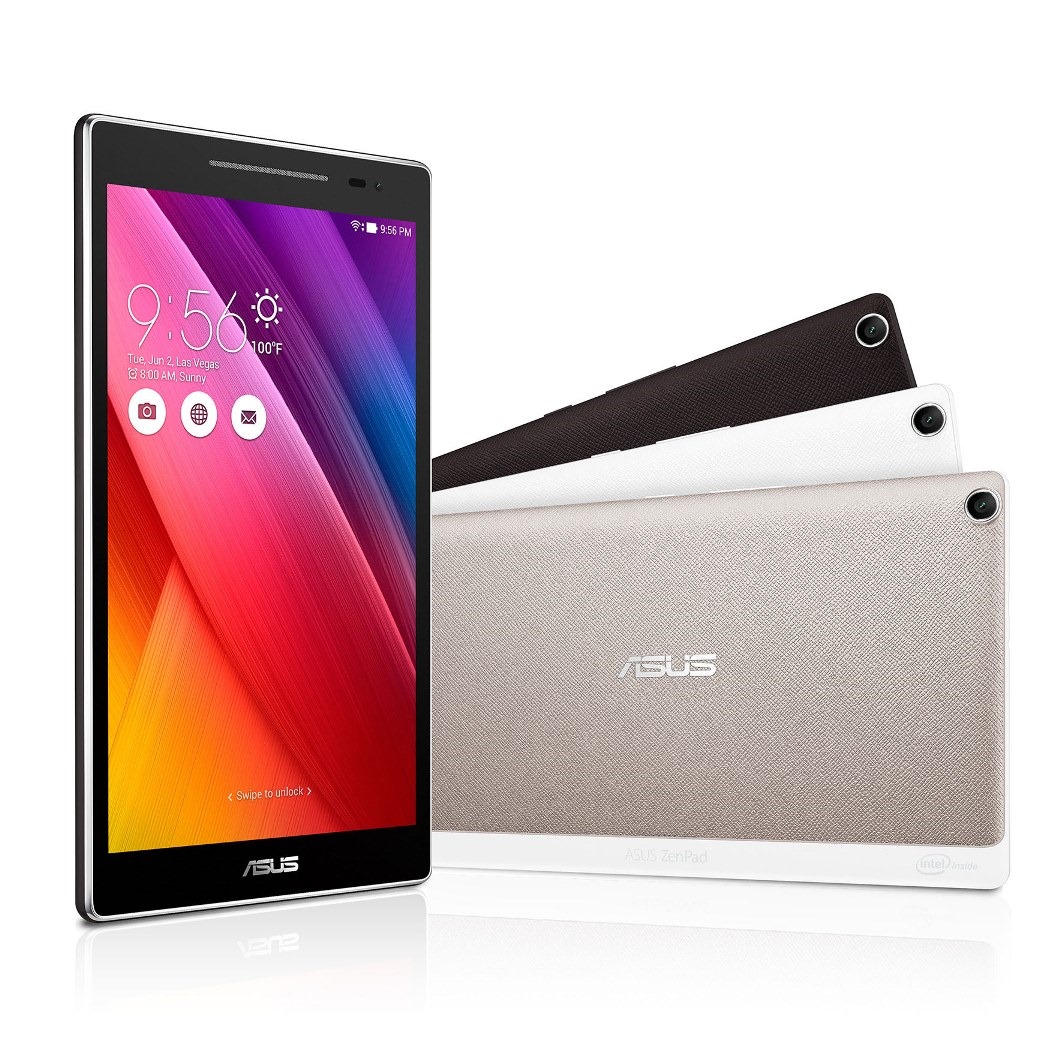
ZenPad S 8.0 rounded out ASUS' Android announcements at the event, and it actually seems pretty decent (even if the looks are... interesting). A quad-core 64-bit Intel Atom Z3580 (also found in the ZenFone 2) with 4GB of RAM, a 2K IPS display, and a rather impressive 6.6mm thinness. Other details include 16 and 32GB storage models, 5MP front and 8MP rear cameras, GPS, USB Type C connector (!), 15.2Wh battery, and a weight of 299g. Apart from a mention of a "Z Stylus," an accessory that will do stylus things, there was also a battery-boosting ZenCase and a predictably large color selection. A "normal" ZenPad 8.0 and ZenPad 7.0 were also announced, but technical details were scant. If you want to do some digging, the model numbers are: Z370C/CG/CL (7"), Z380C/KL (8" non-S), and Z580C/CA (8" S). Android 5.0 with ZenUI will be on all three. Oh, and there's also a 10.1" version that we have basically no details on other than it will have a detachable keyboard, presumably Transformer Book-style.


Models with and without LTE/mobile data connectivity are expected, and for the third time, still nothing on pricing or availability. The images above depict the standard ZenPad 8.0 (Z380C) on the left, and the ZenPad S 8.0 (Z580C) on the right.

Quite a set of announcements from ASUS this evening, or rather, this afternoon at Computex.

ASUS NEW ZENWATCH 2

 
Hi-Tech Talk © 2015 - Designed by Templateism.com