Sunday, February 1, 2015

Google has admitted its responsibility over the shortage in supply of its well-received smartphone, the Nexus 6. (Photo : Getty Images)
Though Google's Nexus 6 smartphone has been receiving a lot of positive feedback because of its unparalleled specs and features, one main issue is getting in the way for it to become the best-selling smartphone this year and that is supply shortage.
According to Greenbot, Google's Chief Financial Officer Patrick Pichette has already admitted that the tech giant has somehow miscalculated its projected supply of the device in the market.
"While the Nexus 6 was well received as a new phone, we had real issues and were unable to secure sufficient inventory to meet the demand that we had forecasted," Pichette said during Google's earnings call on Thursday.
Since the high-end smartphone was launched in November, it has been mostly sold out the entire time and even when the supply was replenished, it wasn't enough to sell for days since it ran out just after a couple of hours.
The thing with Pichette's statement though is that it didn't really explain whether the demand for the Nexus 6 exceeded the demand for its predecessors or that Motorola just can't build enough and keep up to the current demand for the smartphone, reports Techno Buffalo.
Meanwhile, analysts claim that the possible reason why there's an undeniable shortage in the supply of Google's Nexus 6 in the market is that carriers have hoarded too many of the handsets so they can lure more customers into choosing their services.
Of course the news about the supply shortage of the Nexus 6 doesn't come as a surprise to many since the handset packs a lot of good stuff in its large build.

The device flaunts a 6-inch Quad HD  display with 493 pixel density. It runs on the latest Android software update, Android v5.0 Lollipop and has two internal storage variants: the 32GB and the 64GB. 
It sports a 3,220 mAh battery and supports wireless charging. The Nexus 6 houses a Qualcomm Snapdragon 805 chipset with Quad-core 2.7 GHz Krait 450 and an Adreno 420 GPU.
Finally, what's best about the Nexus 6 is the fact that it is lighting fast almost all the time, PC Advisor claims.  

Nexus 6 Is Suffering From ‘Real Issues,’ Google Executive Reveals Shocking Deets!


Screenshots from a Reddit user reveal that messaging app WhatsApp is ready to introduce the long awaited calling feature to its Android app. Based on the images posted by pradnesh07, WhatsApp plans on using an invitation system where one user with the feature places a voice call to another WhatsApp user, and the latter is then able to make voice calls using the app. In addition to adding support for voice calls, the update brings the Material Design look to WhatsApp.
The update is not available from the Google Play Store, which means that you must get the apk from WhatsApp. You can find it at the sourcelink. The 18.52MB file requires Android 2.1 or higher. However, to get the calling feature, you need to be running Android 4.4 or higher.
Another Reddit user, Tropiux, has revealed how to use the feature without getting an invite. "Go to terminal...insert this command with root privileges...am start -n com.whatsapp/com.whatsapp.HomeActivity." You will have to do this every time you want to make a call. Once you are enabled, call someone with the latest version of the app. That will enable his WhatsApp calling feature, and once he calls you, your app will be permanently enabled.
Eventually, the Google Play Store should have the version of WhatsApp "in stock" with the voice call capability.
Screenshots showing the new WhatsApp UI with voice call feature
1.
2.


calling feature in place Screenshots from new WhatsApp UI show calling feature in place

Saturday, January 31, 2015

Since the release of Android 5.0 Lollipop, there have been a number of bugs and issues that have been presented on the Google Nexus 5.

Google Nexus 5 owners have complained about various bugs involving WiFi connections, network connections, unauthorized restarts and faulty performance. These problems were addressed in the Android 5.0.1 Lollipop update for the Nexus 5, but a lot of users are still sending in reports of serious problems such as an issue with battery life. Nexus 5 battery drain on Android 5.0.1 Lollipop can be caused by third party apps lacking the proper updates. One solution for this is to start your device in safe mode and check to see if the battery drain issue persists any further. If this doesn’t work, then it is advised to sort through your third party apps one at a time and find which ones may be causing the underlying problem. Monitoring your app by checking your battery information section in your nexus 5’s settings can also help you see which apps is using the most power from your battery life. Another reason for any battery drain issues could be the software itself, in this case there isn’t anything you can really do.
It is quite surprising though that after most of these problems were resolved with the Android 5.0.1 update, people are still experiencing battery drain, failed connections, app crashes and random reboots with their Nexus 5 devices. The battery drain problem isn’t as common as the latter however, as many users have been reporting. As soon as the lockscreen is activated on an owners Nexus 5, the handheld restarts without warning. The same problem occurs when the phone is locked manually or goes idle by itself as well. There still hasn’t been an official fix to this problem, but one noted solution for battery drain and restarting issues on the Nexus 5 is a clean manual install. If Android 5.0.1 was installed automatically, your system may have been unknowingly susceptible to corruption. The best solution would be a manual installation of Android 5.0.1 Lollipop. To do this owners will have to root their Nexus 5 and perform the update manually, which is strongly advised against considering you will be voiding any warranty on your device or crash the phone entirely.

Google Nexus 5 Battery Drain Issue on Android 5.0.1 Lollipop SolvedRead more:

Friday, January 30, 2015

We've talked before about the things every computer user should know how to do, but we geeks are special: we want to go above and beyond, to explore every nook and cranny of our system and make everything easier. Here are ten ways to do just that.

10. Find New Uses for the Programs You Already Have

Chances are, you've probably already found a few awesome tools and added them to your productivity arsenal, but most programs can be used for more than just their inteded purpose. The file-syncing Dropbox, for example, is also great for monitoring your home computer, printing files from afar, and even downloading stuff with BitTorrent. Savvy folks can use Gmail to store files in the cloud or find out if someone's stolen your laptop. Any tool can become multipurpose if you know its ins and outs.

9. Use the Command Line Like a Ninja

Using the command line isn't as exciting as it looks in the movies, but it can be a very useful tool (in fact, some tools are just better in the command line). It's pretty easy to learn, too-check out our command line primer for beginners to learn some basic commands. Once you've got that down, read up on the best shortcuts that help you navigate the command line like a ninja. Those guides apply to UNIX-based systems like Linux and OS X, but if you're a Windows user you can grab something like Cygwin to get a similar experience (or, if you want a more Windows-centric tool, try Powershell).

8. Read and Understand Your Resource Usage

When your computer starts acting a little slow, a lot of people jump to their resource monitor to see what's causing problems. However, just looking at a bunch of charts and graphs isn't going to tell you what's wrong unless you really know what you're looking for. High CPU is a common problem with one app slowing your system down, and as soon as you close it, the issue should go away. High network activity could be the cause of slow internet or slow file transfers over the network. RAM usage, however, is where a lot of people get thrown off: high RAM usage isn't inherently a bad thing. Know the difference between good and bad RAM usage before you start blaming processes. If you want to keep an eye on your resources, check out our favorite system monitors for Windows, Mac, and Linux, too.

7. Run Everything on a Schedule

Stop performing all that system maintenance yourself and set it all up to run on a schedule. With Windows' built-in Task Scheduler, you can run just about any kind of task-whether it's maintenance, picture uploads, or even a simple alarm-through Windows' built-in tools (in fact, it's one of the best Windows 7 features you've probably forgotten about). Mac users looking for something similar should check out Tasks Till Dawn.

6. Know Your OS's Hidden Features

Every operating system has hidden things lying under the hood, you just have to know where to look. Windows users should check out the hidden features of Windows 7 and Windows 8, while Mac users should peruse the hidden features of OS X Lion and Mountain Lion. If you want to find even more, you can often find them in Windows' Registry or in OS X's terminal. System tweakers like Ultimate Windows Tweaker, OnyX for Mac, and Ubuntu Tweak are also great places to find secret features.

5. Learn to Crack Passwords (and Protect Yourself)

Everyone should know how to create a secure password, but responsible geeks can take it a step further by learning how to break into a comptuer. This skill-whether used on a Windows machine or a Mac-can really help you understand how computer thieves and hackers will try to get at your data. Learning the process means you know how to protect yourself against the process-not just with strong passwords but with encryption and other settings tweaks that keep thieves out. Similarly, you may also want to learn how to crack a Wi-Fi network's WEP and WPA password.

4. Navigate Everything With Your Keyboard

There are certain basic keyboard shortcuts everyone should know, but if you really want to use your computer more efficiently, you can take it so much further. Learn the most common shortcuts for your favorite programs, like Gmail, Microsoft Word, basic text boxes, and even Facebook. After a little while, you'll be able to blow through menus and text boxes with unbelievable speed. Check out our guide to becoming a keyboard ninja, complete with a bunch of cheat sheets to help get you off the ground.

3. Run a Basic Linux Distribution

Even if you don't want to switch operating systems, knowing a few Linux basics can be really handy. With a live CD on hand you can troubleshoot your machine, revive an old, slow PC, and make your way through Linux-based DIY projects. Check out our five-part guide to getting started with Linux, and be careful-it can be quite the rabbit hole once you get into it!

2. Squeeze More Power Out of Your Hardware

With a bit of tweaking, you can push your hardware past its original limits and get some pretty serious bang for your buck. When it comes to your PC, you can overclock your processor and video card, and even install OS X on non-Macs by building a Hackintosh. And, while you're at it-even though it isn't a computer trick specifically-you should try turning your $60 router into a $600 router with DD-WRT.

1. Program Your Own Dead Simple Scripts

You don't need to learn an entire programming language to write advanced scripts. Windows users can do a ton of awesome stuff with AutoHotkey, from creating simple keyboard shortcuts to controlling their PC remotely. To get started, just check our beginner's guide to AutoHotkey and our list of the best AutoHotkey tricks. Mac users don't have anything quite like AutoHotkey, but you can do quite a bit with the built-in, insanely easy-to-learn AppleScript. If you aren't the coding type, check out Automator on the Mac and its clone, Actions on Windows

When all is said and done, this is probably way more than 10 tricks, but if you don't know any of the above, they should keep you busy for awhile. If you have an idea we didn't list, be sure to mention it in the comments below.

Top 10 Computer Tricks Every Geek Should Know

Windows 10 phone preview,

The final release of Windows 10 is still months and months away, but Microsoft is happy to give users eager for a preview an early look at the operating system. The PC preview has been out for a while now, and for the past few weeks we’ve been anticipating the start of a similar preview for phones. Earlier this month Microsoft started prepping for it release by publishing its Phone Insider app, and at the Windows 10 event last week, the company confirmed its intention to make that preview available in February. As we approach that release, Microsoft is updating the Insider app, giving it a new name and preparing us for some of the first limitations of Windows 10.

Instead of Phone Insider, the app is now Windows Insider, a fitting change considering how Microsoft’s dropping the Windows Phone brand with the release of Windows 10. We also see the arrival of an option to sign in with your Microsoft account, though until the preview goes live for the public, that won’t do you much good.

We also see mention of minimum system requirements for installation of the preview, but we don’t yet know exactly what those will entail. That restriction shouldn’t be too surprising, consideringMicrosoft’s recent clarification that not all Windows Phone 8.1 models will see the arrival of complete Windows 10 updates. Really, we’re most interested right now in hearing the specifics of which kinds of devices won’t be able to run the preview, to give us a heads-up for what to expect in regards to compatibility when formal Windows 10 updates roll around.

Microsoft updates Insider app in advance of Windows 10 phone preview, hints at hardware requirements

Tuesday, January 27, 2015

Digitally speaking, we're not even plodding along yet.


Why, AT&T is throttling my data this month and my phone still won't work too well in half of California's Wine Country.

However, Eric Schmidt, Google's executive chairman, is very well connected to the future. And he'd like you to know that the pesky Internet thing will soon be a digital dodo.

I know this because today he said: "The Internet will disappear." As the Hollywood Reporter offers, Schmidt was schmoozing and strategizing with the hive mind of world leaders at the World Economic Forum in Davos, Switzerland.

He made a few more brushstrokes to contribute to his picture of Futureworld: "There will be so many IP addresses (...) so many devices, sensors, things that you are wearing, things that you are interacting with that you won't even sense it."

Surely you will sense it, because you'll find this magical at-oneness with the digital world far more interesting than, say, the humans in a room who are also finding their own magical at-oneness with the digital world.

Schmidt explained: "It will be part of your presence all the time. Imagine you walk into a room, and the room is dynamic. And with your permission and all of that, you are interacting with the things going on in the room."

Permit me a dynamic guffaw at the mention of permission. Humanity has long ago bared its chest and dropped its trousers, merely for the opportunity to post images of its tanned toenails and to buy some strawberry-flavored toothpaste.

Just to underline this, the Davos forum also heard from Harvard professor of computer science, Margo Seltzer. The AFP reported two of her more charming statements.

First: "We live in a surveillance state today." Second: "We are at the dawn of the age of genetic McCarthyism."

MORE TECHNICALLY INCORRECT
Microsoft looks for love, but will there be a happy ending?
Bill Gates gets Jimmy Fallon to drink sewer sludge
Man says alleged iPad thieves uploaded selfies to his iCloud account
This latter thought portends a world, she said, where tiny drones are flying through the air checking you for a pox of one kind or another. On behalf of, say, your health insurance company.

All for the greater good, you understand.

Yesterday, with its HoloLens, Microsoft showed one small step toward walking into its version of a dynamic room. Most who saw it found it exciting.

For Schmidt, the idea of a dynamic world represents "a highly personalized, highly interactive and very, very interesting world."

Of course we'll rush headlong into it because there'll be so much excitement along the way. There'll be fun and marveling to be had.

We should look forward to it. We'll all be robots after all, programmed to marvel at just the right things.

The Internet will vanish, says Google's Eric Schmidt

Monday, January 26, 2015

From learning how to nap anywhere to knowing what your tongue says about you, body hacks can improve your life.You’ll learn everything from how to nap tohow super foods can improve your life.

1. How to Start Running

Via healthy-living.global-endeavor.com

2. Eat Super Foods, Not Junk Foods

Via blendtec.com

Eat Super Foods, not junk food when it comes to your health.

Here’s the list of super foods that you should be eating for a better body.

3. Always Remember to Get Your Back

Via algra.com

4. When Walking, Make the Most of It

Via superskinnyme.com

5. Know the Best Time to Hydrate

Via lifehack.org

6. If You Have Irritations After Shaving, Try Baby Oil

Viarandomthoughtsfromastayathomemom.blogspot.ca

7. Know What Foods Are Great for Your Skin

Via specialsections.suntimes.com

8. If You Have Poor Posture, Try this Yoga Stretch

Via franlife.blogspot.com

9. Know the Shape of Your Face and Pick Sunglasses Accordingly

Via i.imgur.com

10. What Does Your Tongue Say About You?

Via pinterest.com

11. Hacks for Relieving Sunburn

Via dearmusketeer.blogspot.com

12. Know Your Hand’s Pressure Points

Via pure-and-simple-healing.com

13. Know How to Run (Correctly)

Via thelifethestyle.tumblr.com

14. 14. Household Items Good for the Body

Via saywhatuwanna.com

15. DIY Teeth Whitening

Via i.imgur.com

16. Hack Your Brain for Lucid Dreaming

Via 9gag.com

17. Learn How to Nap Anywhere

Via buzzfeed.com

18. This Can Also Apply to Your Dog

18 Amazing Body Hacks That Will Improve Your Life

Sunday, January 25, 2015


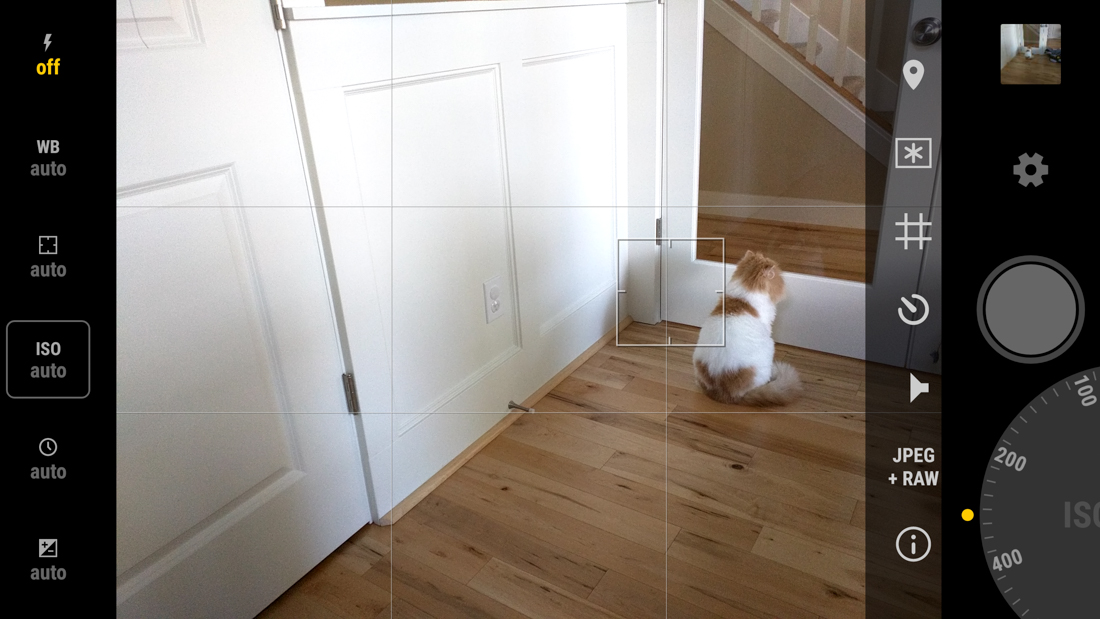
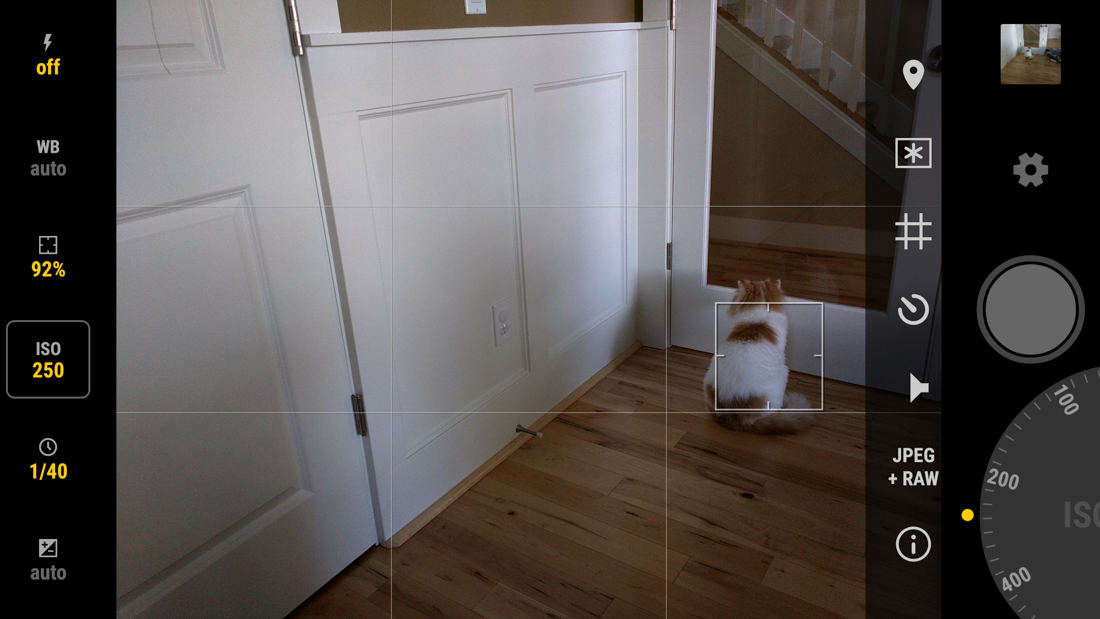
Looking for the next great camera app that can take advantage of the new camera API introduced with Android 5.0?Manual Camera may just be what you need. This app, in the short time I have spent with it, will without a doubt become my go-to camera app when I am using theNexus 6 or Nexus 5, the two devices it supports. 

With Manual Camera, you get a very clean and accessible layout, with shortcuts for flash, white balance, focus, ISO, shutter speed and exposure on the left side. On the right, you have gallery and settings shortcuts, a shutter button, and then a dial that lets you quickly control all of the settings from the left side. The camera starts in auto mode, which you should have no problems shooting in, but if you want to start tweaking the manual focus or ISO or shutter speed, you can do that with a tap on a button and spin on the dial. It’s pretty easy to figure out.

The camera also shoots in RAW, includes a few different shooting grids, and a shortcut to max out your phone’s brightness.

Also, did I mention how fast this camera app shoots? One of the problems I had with the Nexus 6 camera out of the box was the slow auto focus and shutter speeds, but those don’t seem to be a problem at all with this app. I haven’t been this excited to snap pictures with a Nexus in a long time.

Keep in mind that the app is brand new, so it should only get better over time.

Manual Camera App Should be Your Next Purchase if You Own a Nexus 5 or Nexus 6

Saturday, January 24, 2015

Google is among the most sought after employers in the world. Engineers are the rock stars at Google — and they’re paid like one.

Interns start at $70,000 to $90,000 salaries, while software engineers pull in $118,000 and senior software engineers make an average of $152,985. But one does not simply walk into the Googleplex.

The company receives upwards of 2.5 million job applications a year, but only hires about 4,000 people.

For would-be Googlers, the Google in Education team has released a list of skills that they want to see in potential engineers.

“Having a solid foundation in computer science is important in being a successful software engineer,” the company says. “This guide is a suggested path for university students to develop their technical skills academically and non-academically through self-paced, hands-on learning.”

Here are the skills Google wants its tech talent to master, complete with online resources to get you started…

1. Learn To Code

Learn to code in at least one object-oriented programming language, like C++, Java, or Python. Consult MIT or Udacity.

2. Test Your Code

It’s not just important to know how to code. You should also be able to test code, because Google wants you to be able to ‘catch bugs, create tests, and break your software.’

3. Have Some Background In Abstract Math

It is important to have some background in abstract math, like logical reasoning and discrete math, which lots of computer science draws on.

4. Get To Know Operating Systems

Get to know operating systems, for they’ll be where you do much of your work.

5. Become Familiar With Artificial Intelligence

Become familiar with artificial intelligence beacuse Google loves robots.

6. Understand Algorithms And Data Structures

Google wants you to learn about fundamental data types like stacks, queues and bags as well as grasp sorting algorithms like quicksort, mergesort and heapsort.

7. Learn Cryptography

Learn cryptography. Remember, cybersecurity is crucial and important for security.

8. Learn How To Build Compilers

Stanford says that when you do that, ‘you will learn how a program written in a high-level language designed for humans is systematically translated into a program written in low-level assembly more suited to machines.’

9. Learn Other Programming Languages

Add Java Script, CSS, Ruby and HTML to your skillset. W3school and CodeAcademy are there to help.

10. Learn Parallel Programming

Also, learn parallel programming because being able to carry out tons of computations at the same time is powerful.

10 Skills You Need To Get A Job At Google

Why whatsapp for web not available for iPhone?

WhatsApp for web browsers was launched this week — but not for anyone with an iPhone or people using any browser apart from Chrome. But the limited features are likely a result of WhatsApp commitment to mobiles and privacy.

The Facebook-owned company announced this week that users could send messages from their PCs over the web. But while the feature is available for everyone on Android, BlackBerry, Windows or Nokia Phones, it wasn’t launched for iPhone and other browsers like Safari or Firefox.

Whatsapp blamed Apple for not being able to put the feature on iOS — citing “platform limitations”.

While other chat services like iMessage and Google Hangouts offer the option to sync accounts across phones and computers, they don’t have the same wide adoption as WhatsApp. iMessage is also limited to use on Apple devices, and Hangouts is much easier to use on Google’s phones, web clients and browsers.

As well as requiring Android and Chrome, WhatsApp on PC uses the network connection from the phone. That means that it can’t be used if your Android phone is out of signal, or run out of battery — two of the most helpful uses for being able to access the client on other devices.

But the limitations likely stem from two of WhatsApp’s key principles for the app: that it should always remain mobile first, and that communications should have end-to-end encryption so that they can’t be snooped on.

The way the web app works means that WhatsApp is able to make messages viewable on desktop without sacrificing its priority to keep things mobile. The web browser is essentially just a way of mirroring what’s happening on the app on your desktop.

“This means all of your messages still live on your phone,” as WhatsApp said in its statement — and it ensures that the web app stays as a useful utility rather than the beginning of any move to offer WhatsApp to non-mobile users.

The process is also likely to be a result of WhatsApp’s commitment to end-to-end encryption, though the company hasn’t said so. The slightly difficult way of linking phones to the web client, as well as the complications that exist when users have done so, are probably at least in part a result of WhatsApp’s commitment  not to read users’ messages and to stop other people from doing so.

WhatsApp on web disappoints some with no support for iPhone and many browsers

 
Hi-Tech Talk © 2015 - Designed by Templateism.com